Login & Employee Profile Setup
Part A - How do I log in to the Tapni Business (Admin) Dashboard?
- Open the Tapni Business (Admin) Dashboard in your browser.
- On the login screen log into with your credentials
Step 2: First-time access (new account)
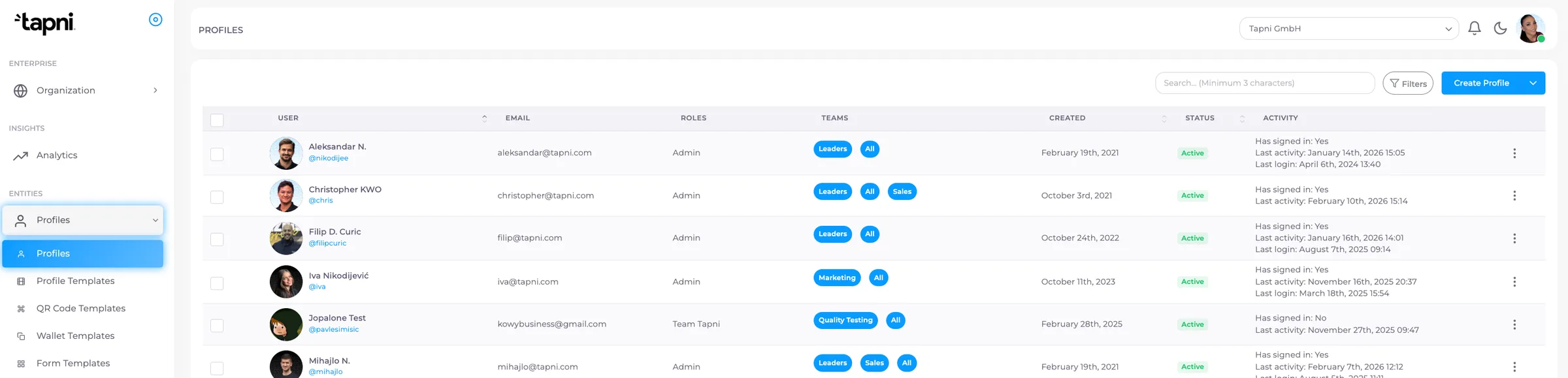
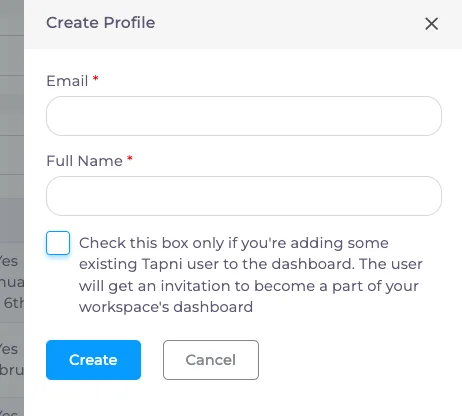
- Under the section ‘Profiles’, in the top-right corner, you have blue button ‘Create profile’ you need to enter your employee’s details, and their profile will automatically appear in the user list under the Profiles section shown here.
After creating the profiles, you’ll need to generate and send login credentials to each user.
Steps:
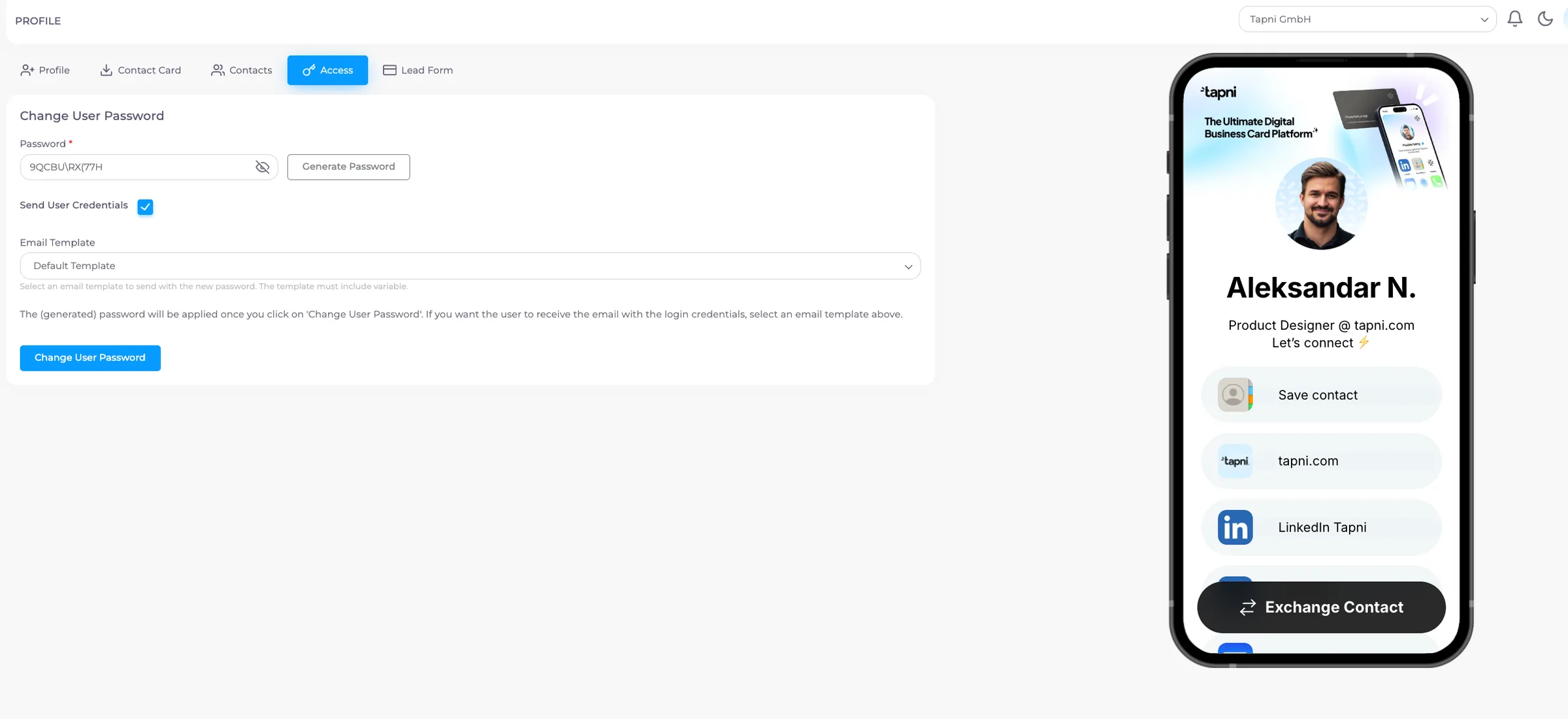
- Open the employee’s profile
- Click to section ‘Access”, then click on ‘Generate Password’
- Tick Send Credentials
- Click Change User Password
- Users will receive an email with their login credentials and can use them to access the Tapni app. Access to the Tapni Business Dashboard is available to admins only.
Step 3: Admin Access
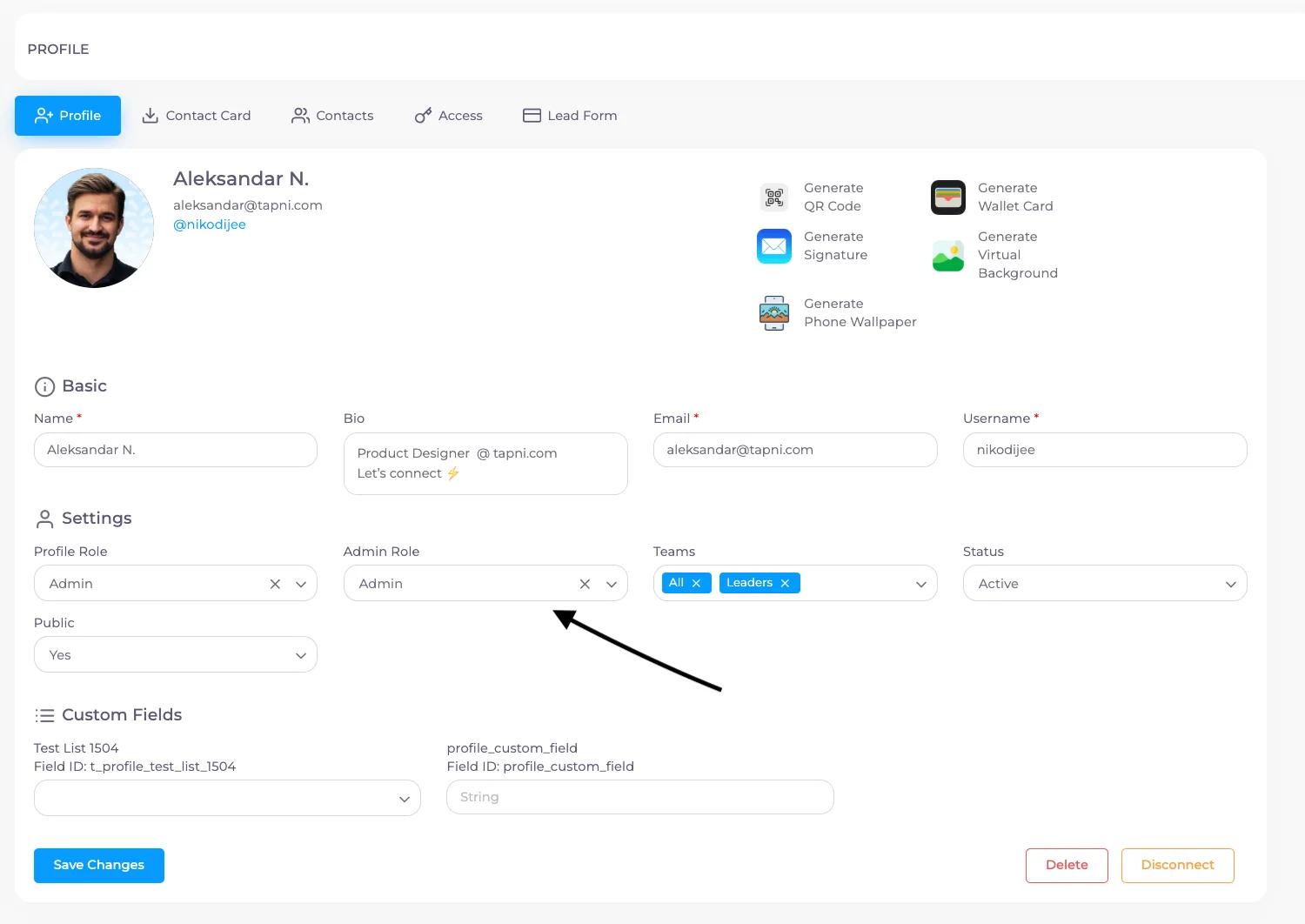
- Once you’ve completed the list of profiles you want in the Admin Dashboard, you’ll have a clear overview of all users. Then, you can assign admin roles by opening the profile of the user you want to update and selecting the Admin role in the Admin field.
- Choose Admin only for people who need to manage users/templates
Part B - How do employee profiles get created/completed?
What the admin does in the dashboard
In most setups, the admin:
- Invites the employee (creates the users accounts)
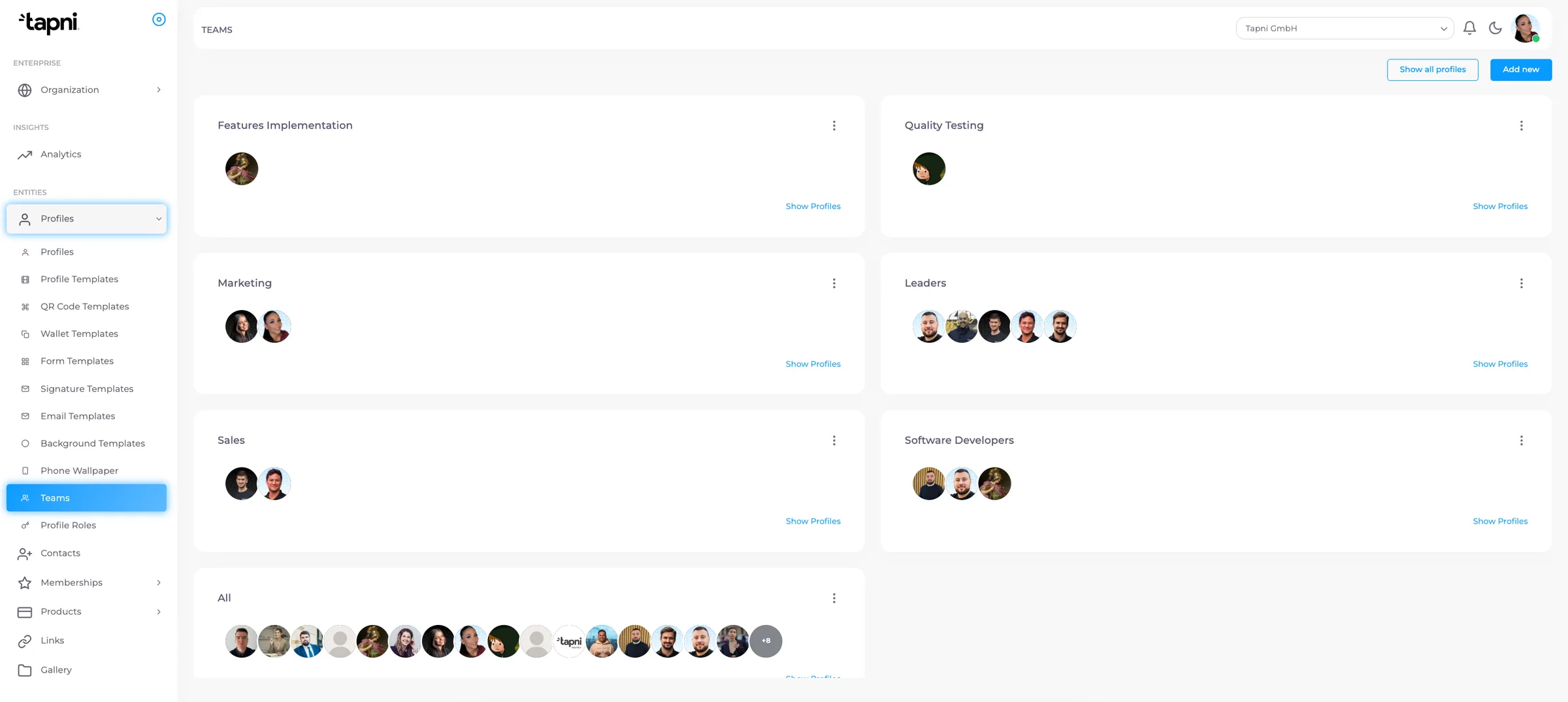
- Optionally assigns them to a team/department
- Ensures templates are set up to pull employee data via variables (recommended)
What the employee does (required)
Each employee must complete their profile with their own info, so their Tapni products and any templates can pull the correct info.
Employee steps (typical flow):
- Log in to the Tapni app with the invited work email
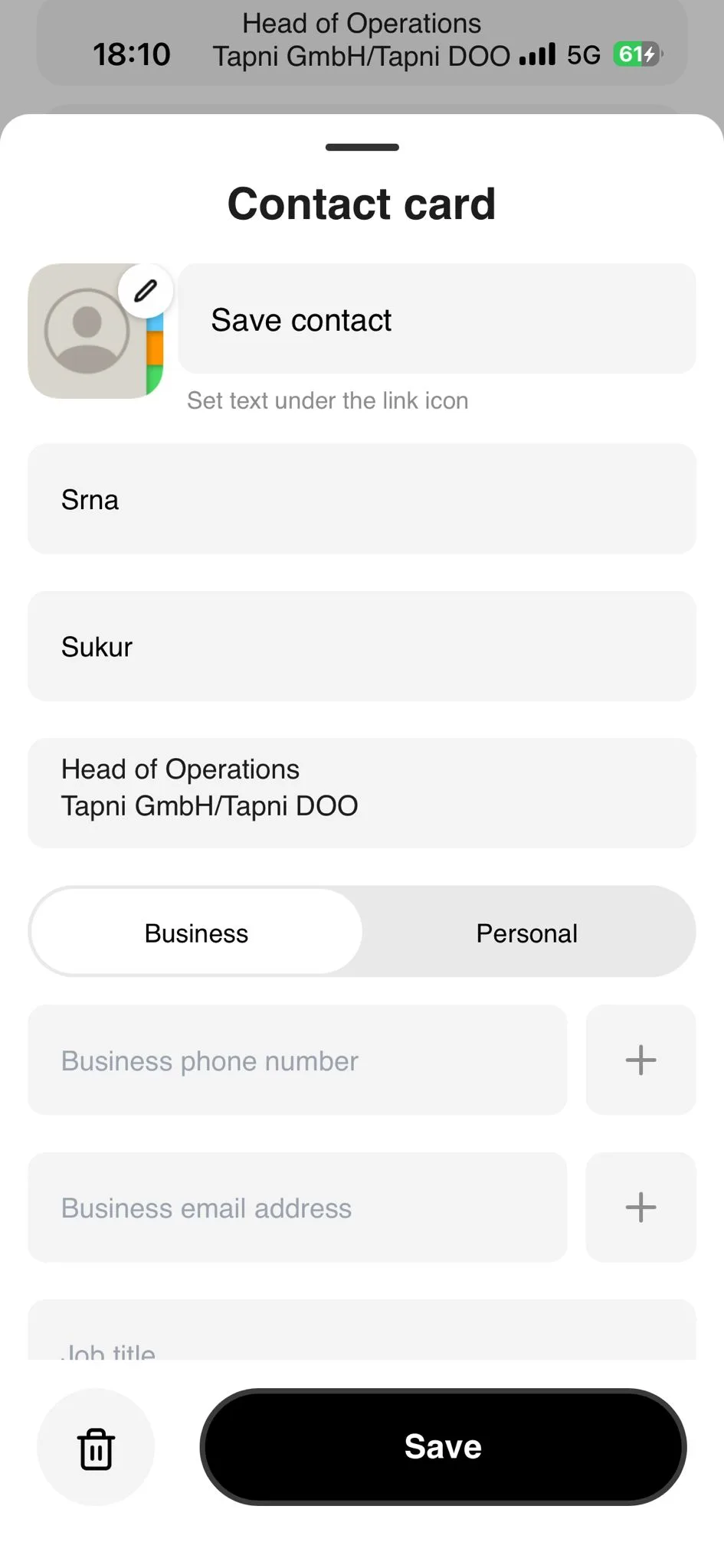
- Go to Edit Profile
- Add/confirm:
- Name
- Email
- Title/Role (often stored in Bio, depending on your setup)
- Company
- Photo (optional, but recommended)
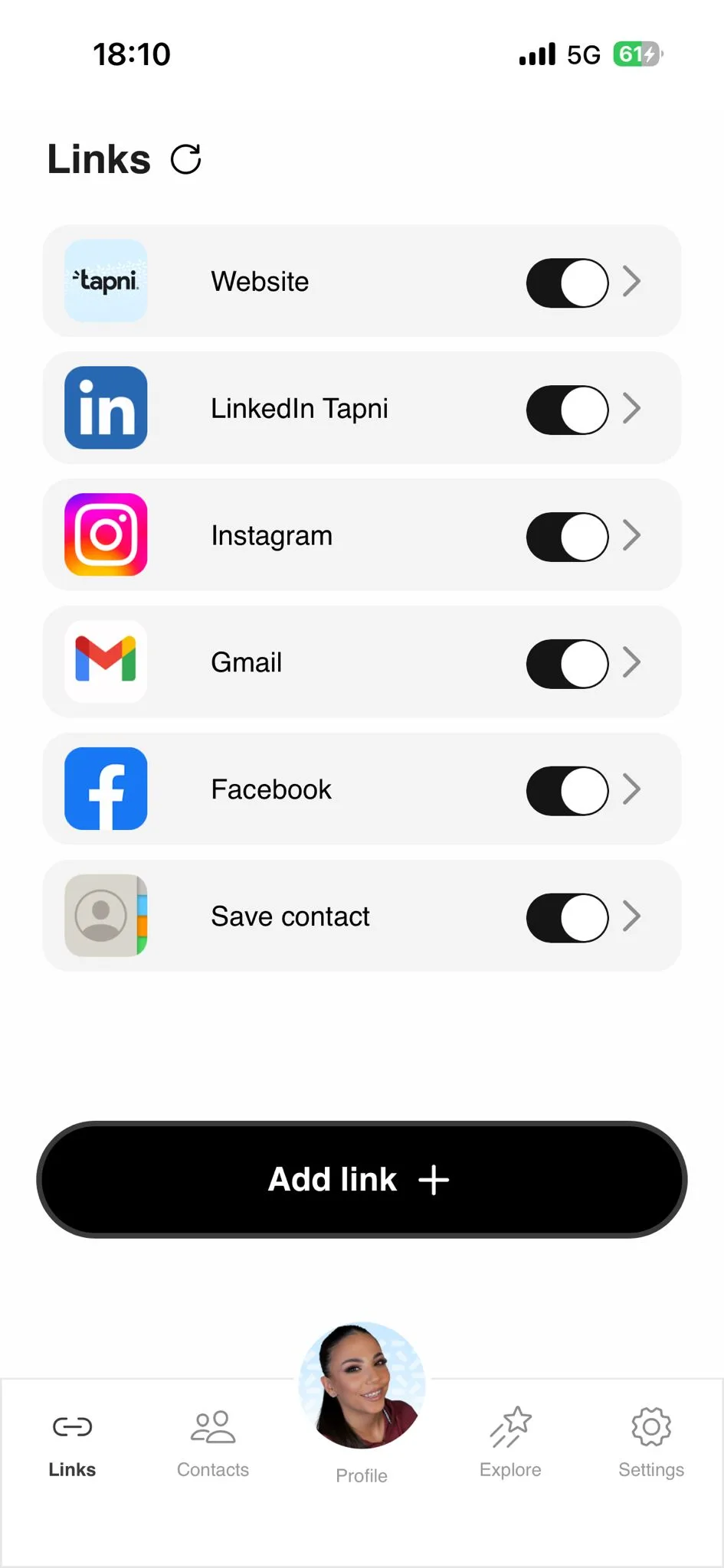
- Add links (phone, LinkedIn, website, etc.)
- Save changes
Recommended “Required Fields” checklist (for consistent results)
Ask every employee to fill:
- Name
- Work email
- Company
- Job title / Role
- (Optional) phone, LinkedIn, website, location
📌 Tip: If you use templates, missing profile fields usually means missing output in cards/signatures/wallet.