Browse our comprehensive product guides and documentation

Here is our free generated tool, for creating Email Singatures.🎉
https://mailsign.link/signature.
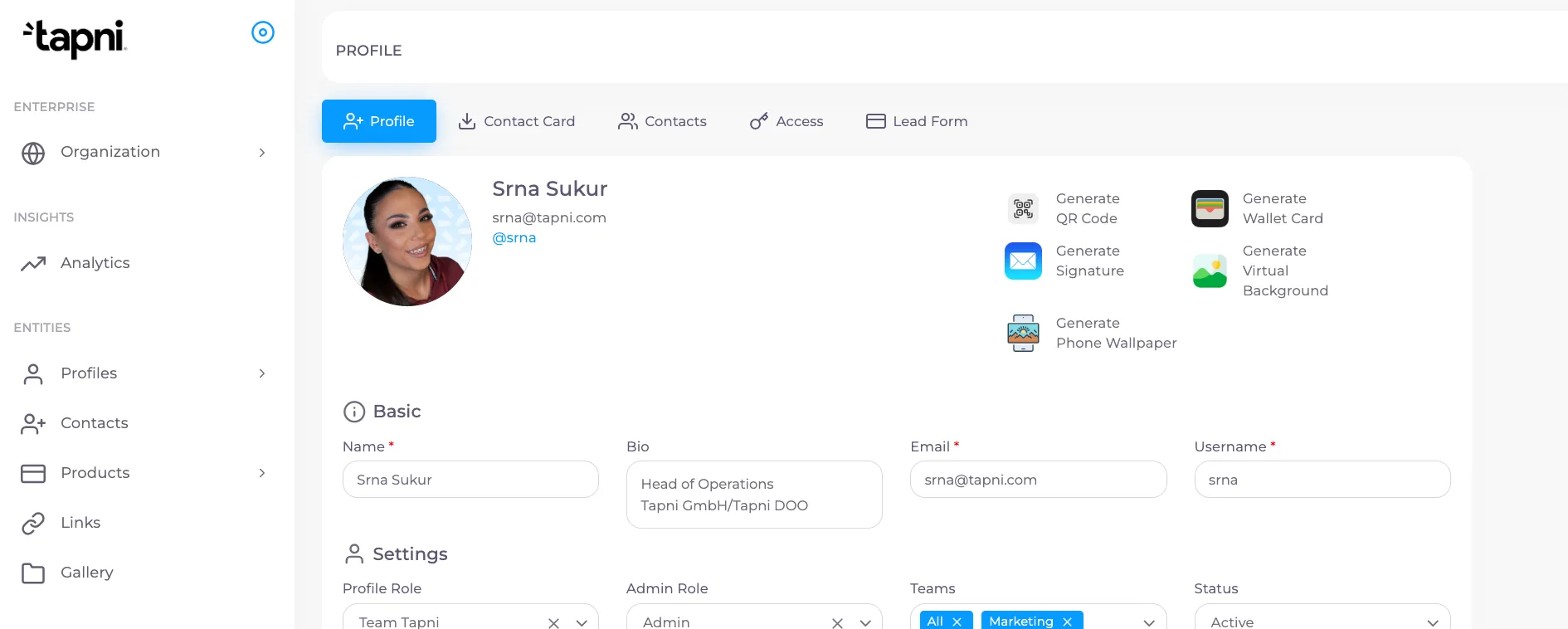
CREATION IS IN DASHBOARD UNDER SECTION ‘EMAIL SIGNATURE’
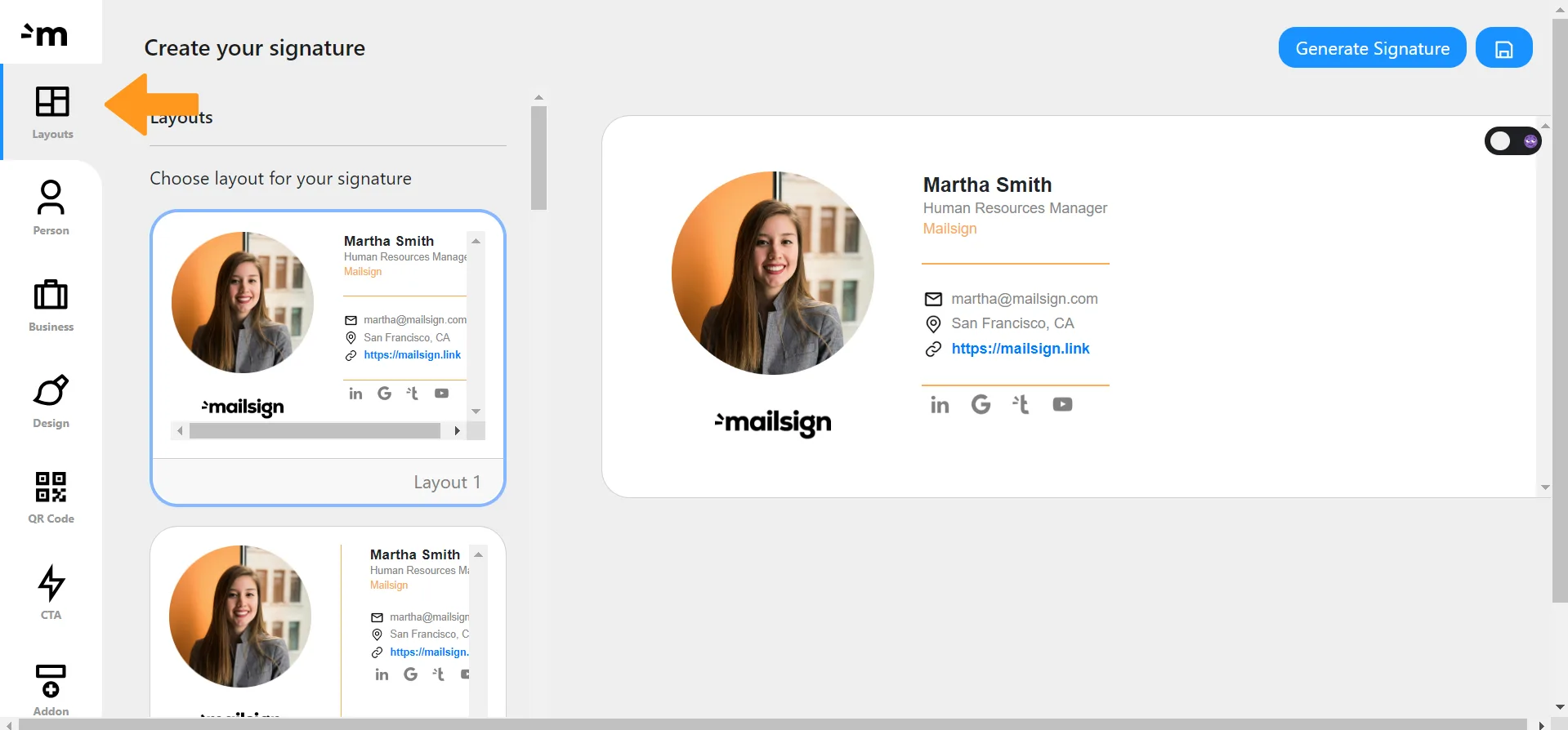
Layouts
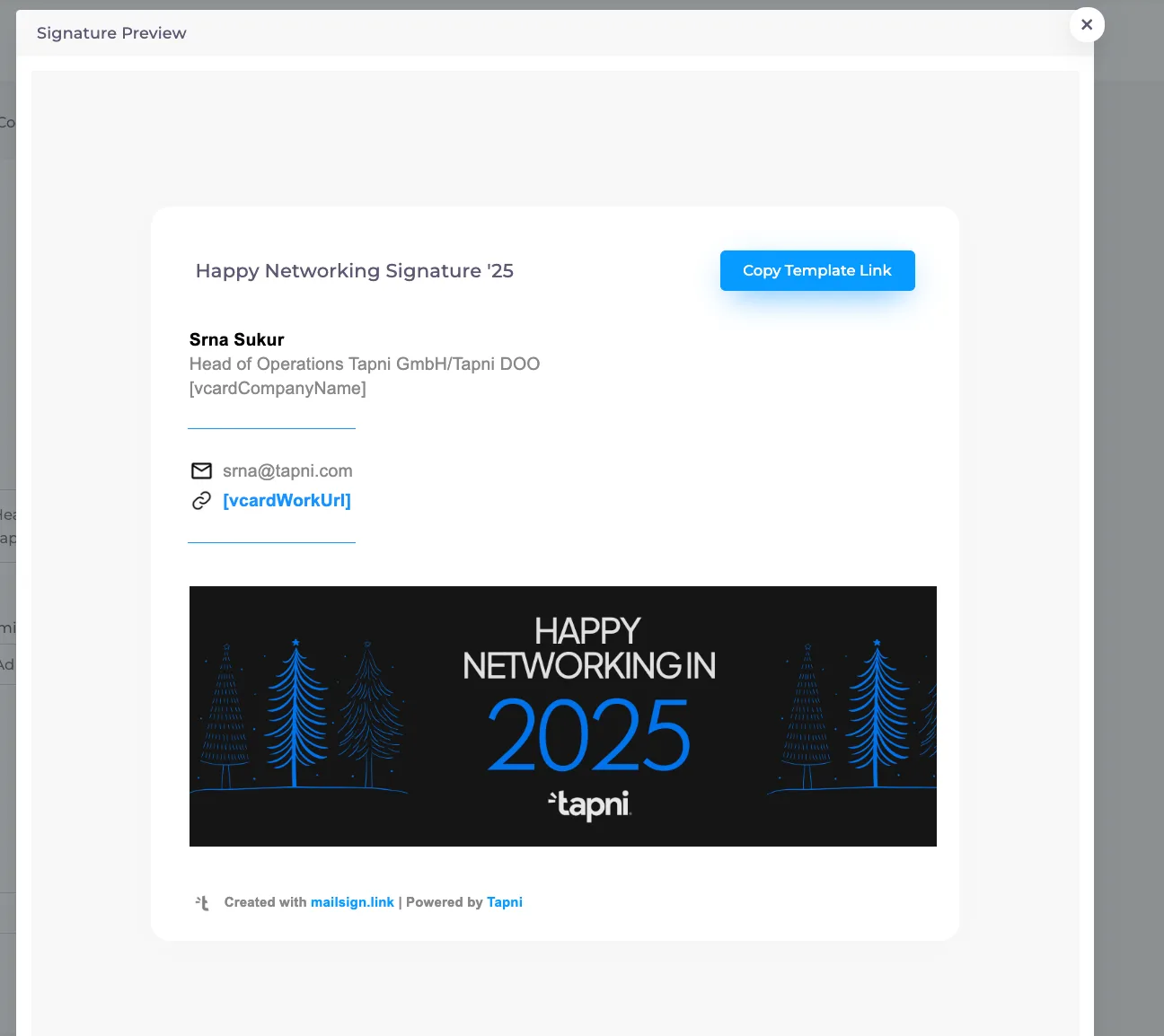
You can start with nine custom templates that cater to a broad spectrum of user needs. These templates allow you to embed crucial details from personal identifiers like name and job role to vital company branding elements like logos and banners.
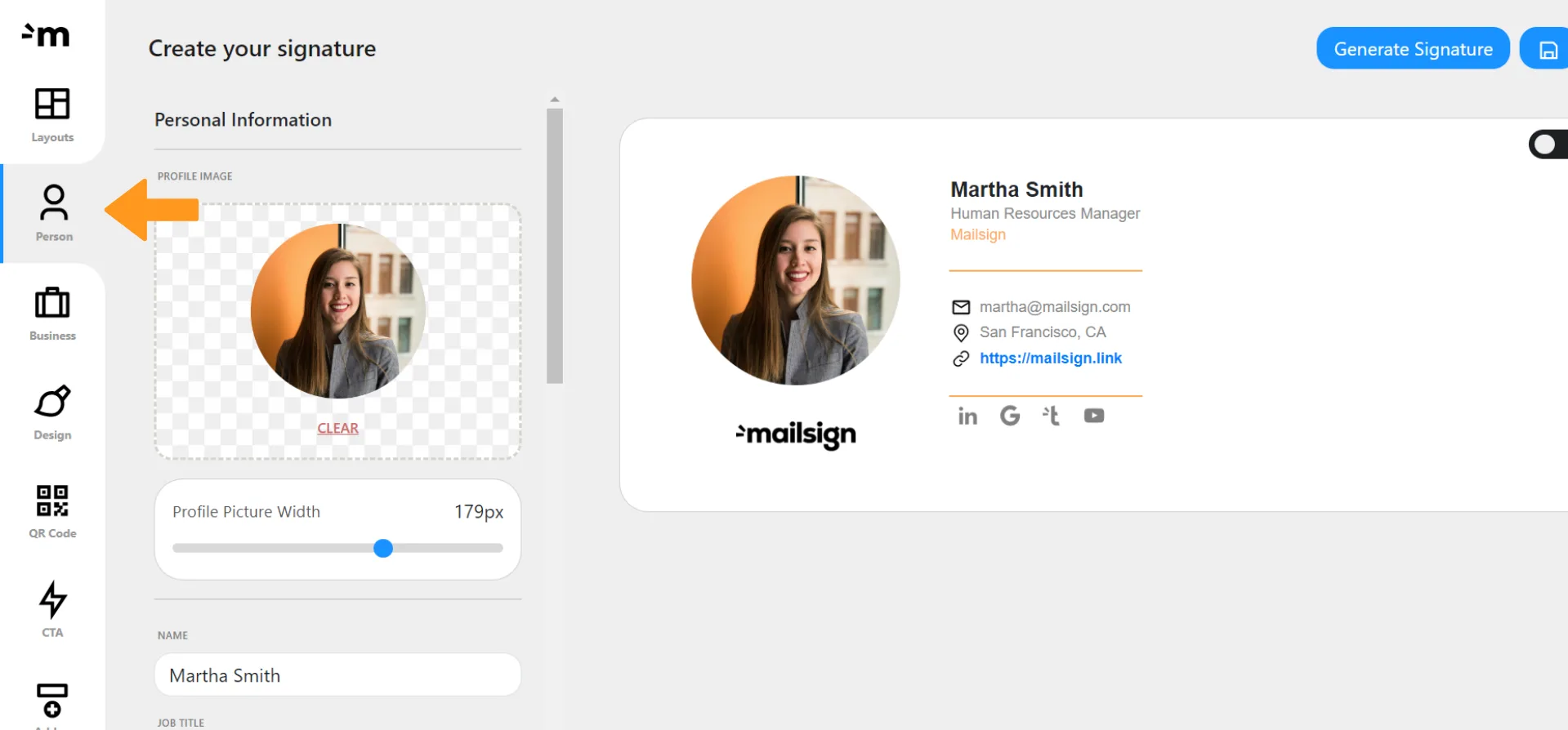
Personal Section
This section lets users connect their personal informations with a dynamic interface. Upload your professional image, set its width, and even choose a placeholder if needed. Your name, job designation, and email also find their neat spots here.
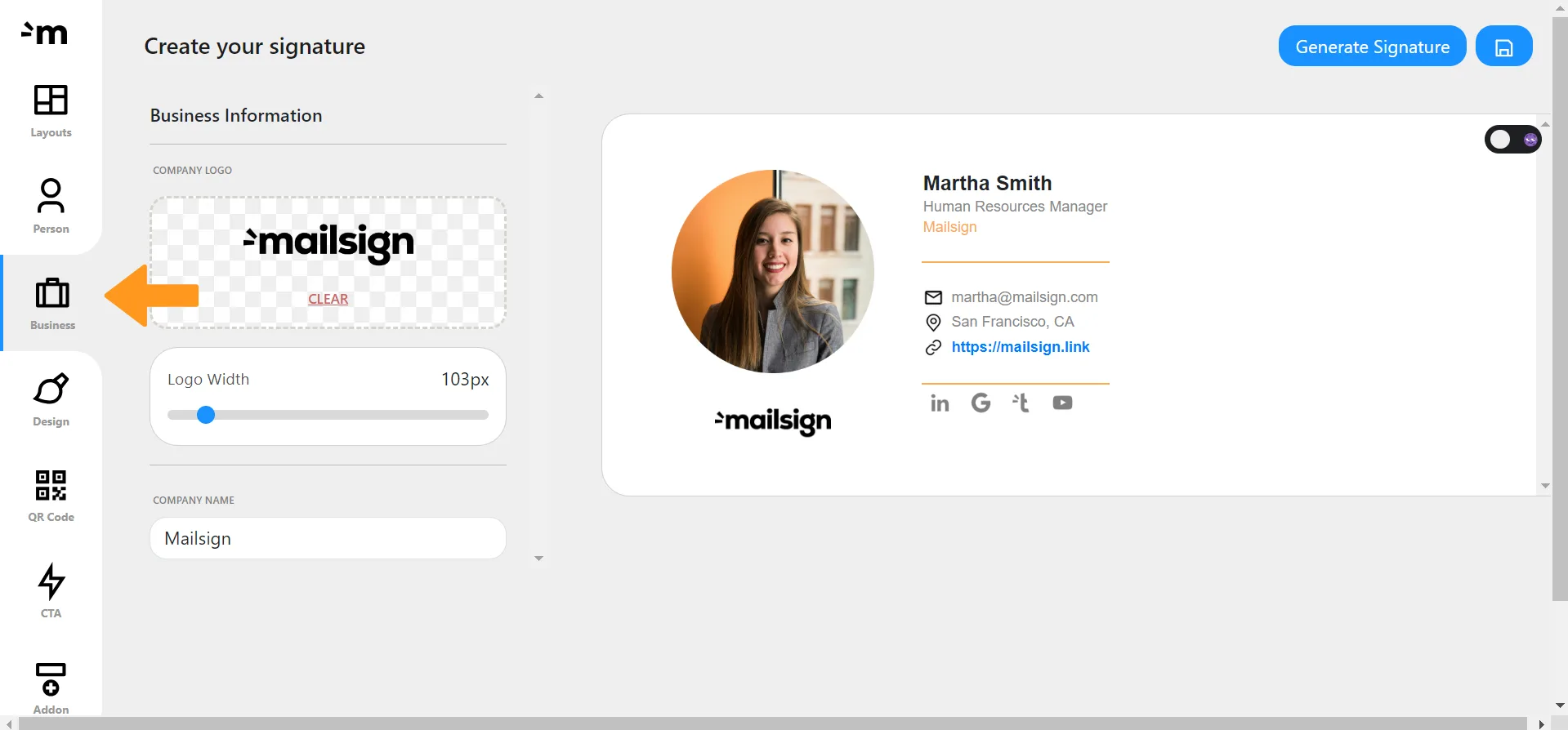
Business Section
Integrate your company's logo, set its dimensions, and choose between having a placeholder image or the actual one.
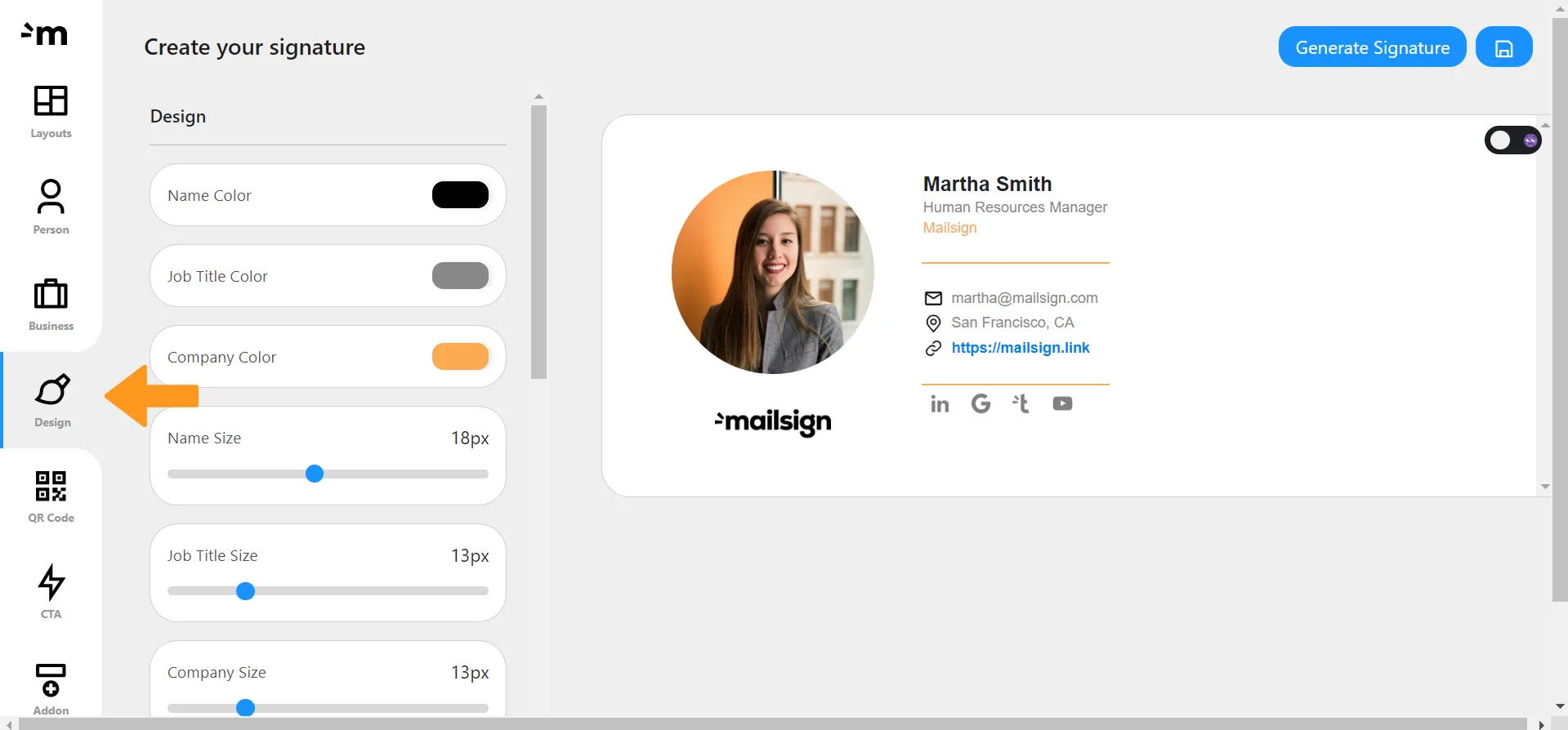
Design Section
MailSign appreciates that a signature's appearance matters. Choose to display or hide icons related to contact details. Adjust the size of these and the social media icons to your liking. You also have control over dividing lines, adjusting their widths and colours, ensuring a neat separation of your information. Plus, to acknowledge the tool, you have the option to show or hide the "Created with mailsign.link | Powered by Tapni" line.
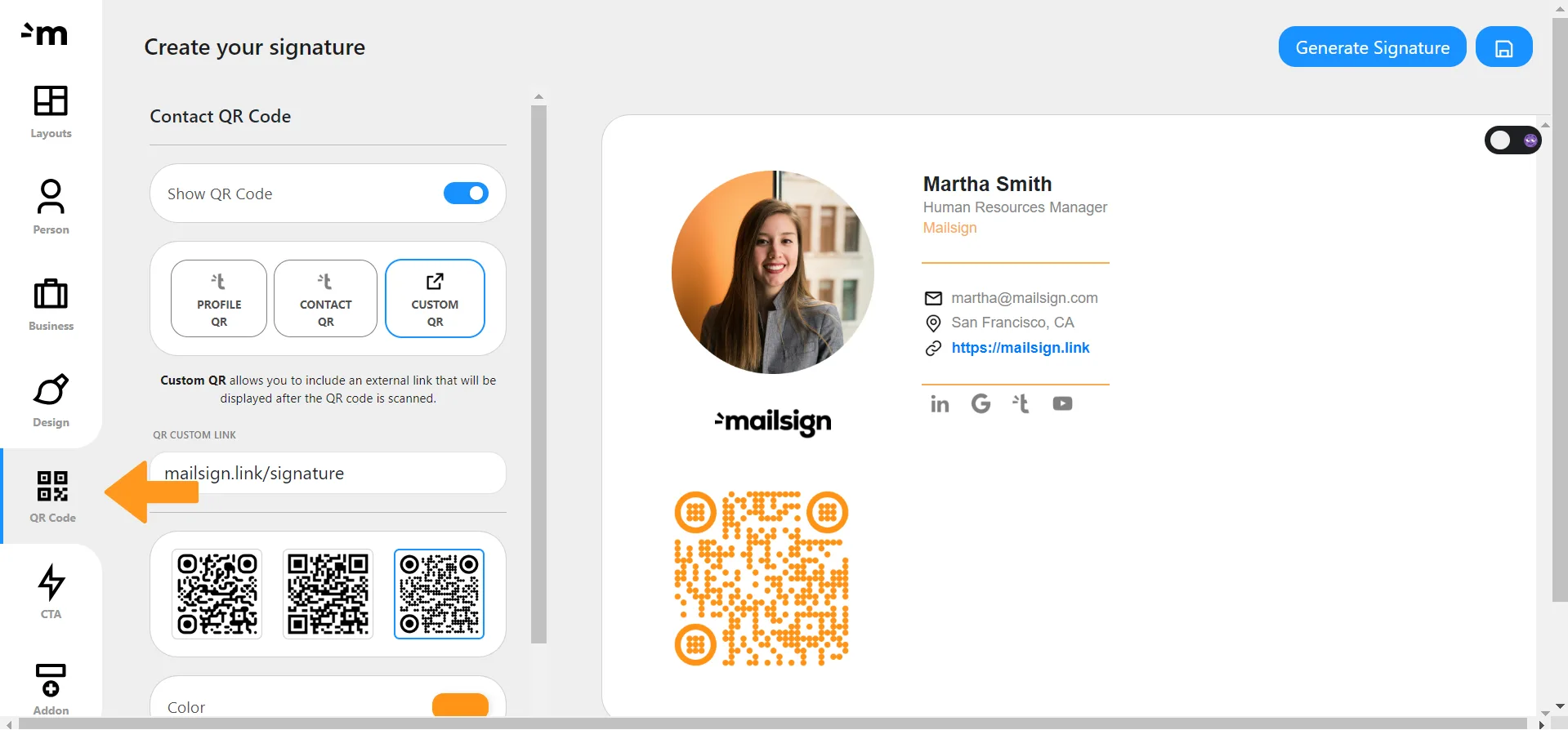
QR Code Section
You can add a QR Code, choose the link, as well as style for it. Not only that you can turn QR Code into a digital business card inside your email signature - you can customise it.
CTA section
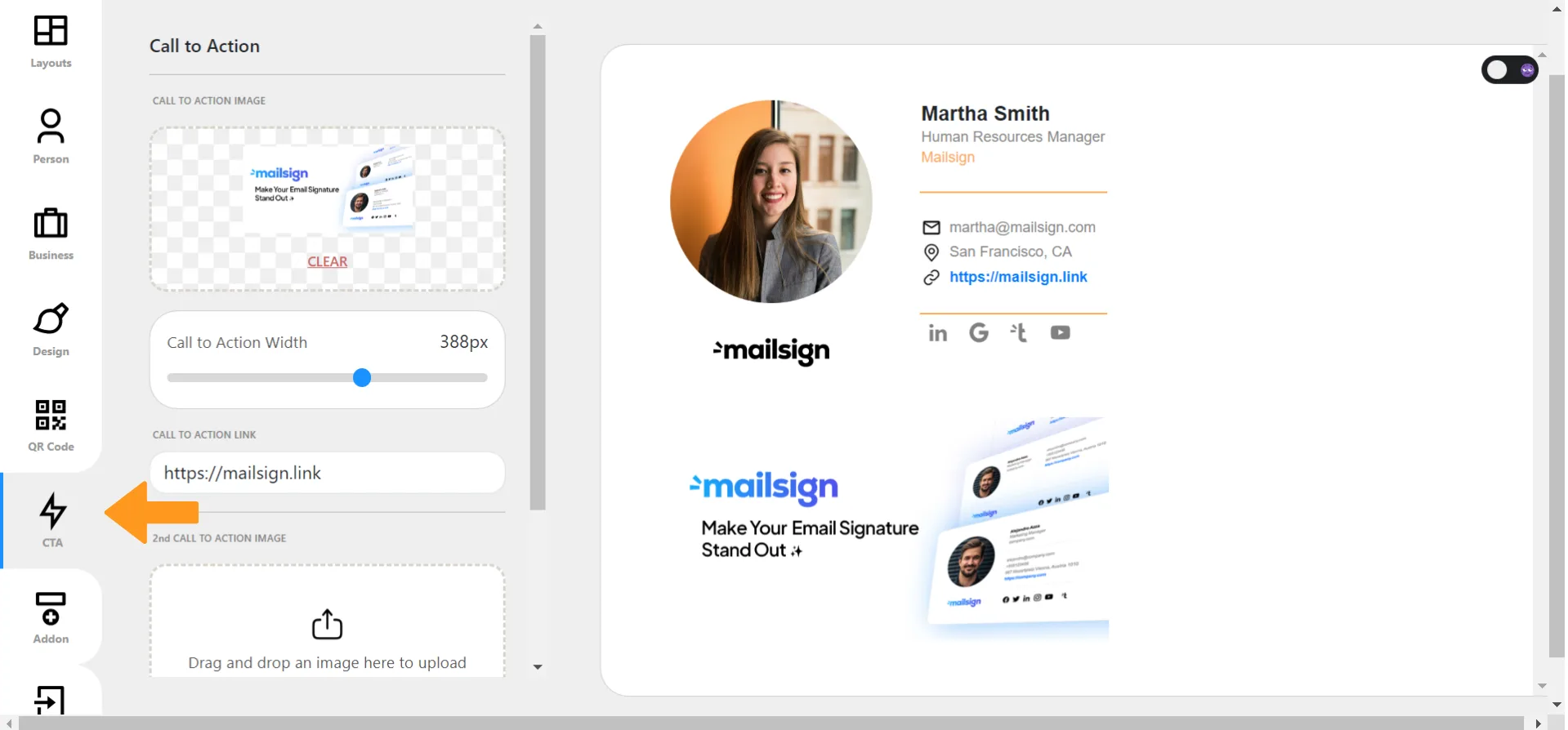
You can add two Call-To-Action buttons as a part of your email signature. These can be tailored to direct readers to specific web pages or prompt particular actions. You can link these CTAs to images and adjust their display sizes.
Professional Disclaimer
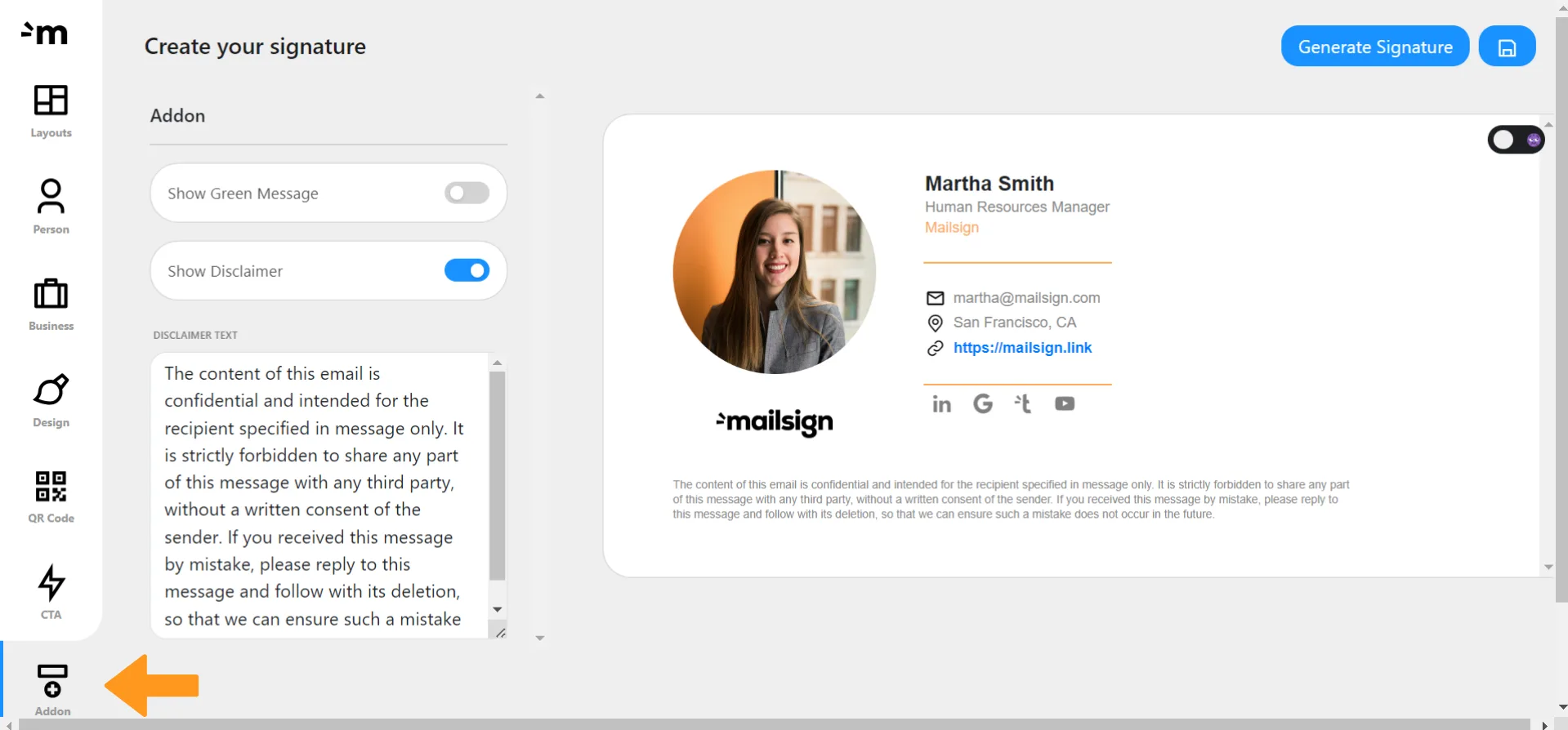
It emphasises the private nature of the email content and ensures recipients understand the necessity of confidentiality. You have the autonomy to display or remove this, based on your preference.
Today we learned that a nice-looking, and attractive email signature is important because:
For all these reasons, we highly recommend you to try to create your email signature today - you deserve to add a nice touch to your business (and personal) presentation. ✊
Email Signature that’s not only that - but a business card as well?
Possible with the mailsign.link!
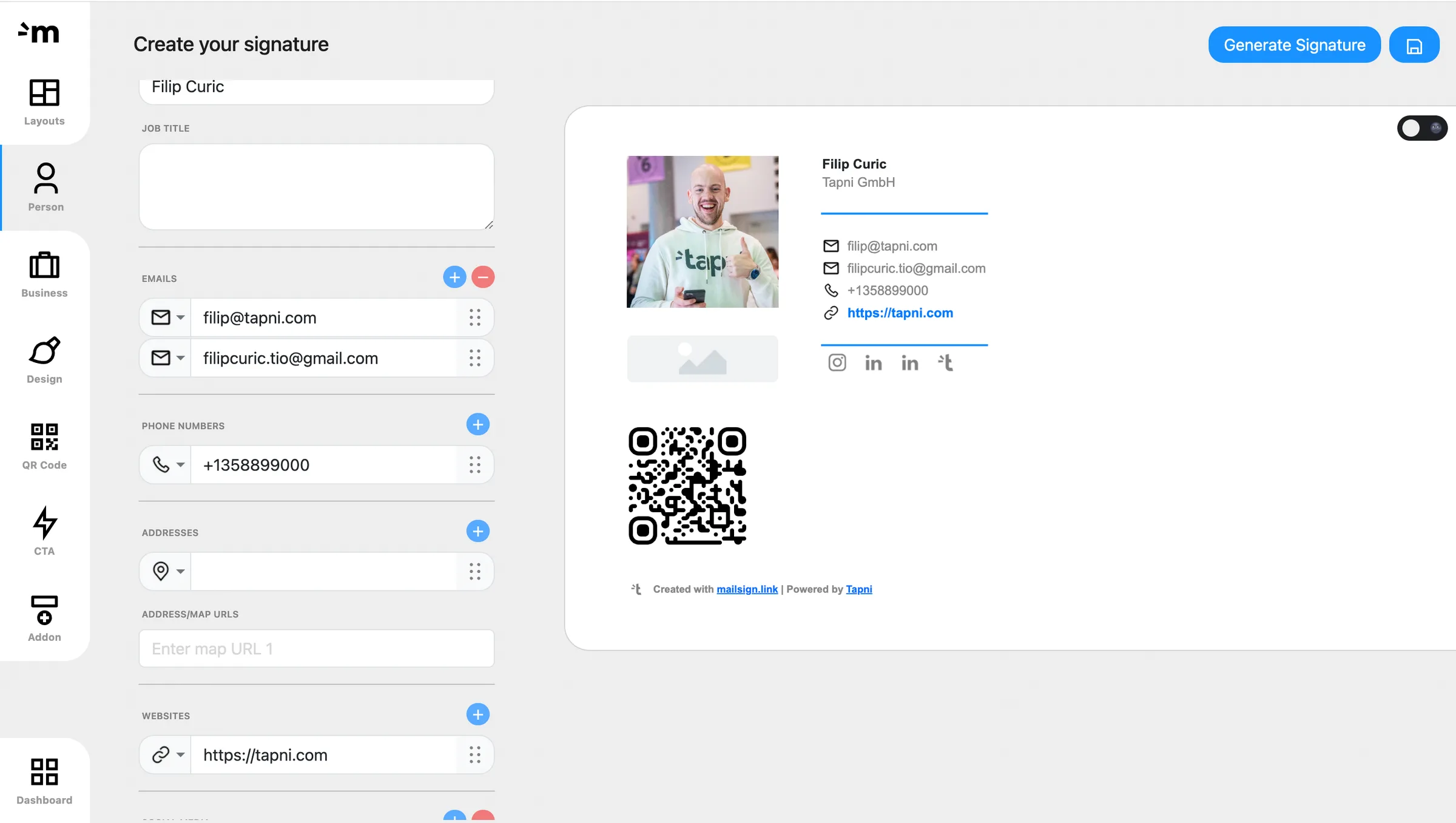
With MailSign, you can add a QR Code to your email signature, and give a chance to all the email readers to check your digital business card and/or download your contact details.
This can positively affect your business and customer relationships, because it will show that you’re thinking about potential follow-up, and you wanna make sure that everybody can reach out to you via some different sources if you’re unavailable via email.
MailSign gives you possibility not only to add the QR Code, but also to customise it, and choose if you want to link it to some other web source, company’s presentation, marketing material etc.
All of this - for free!
🎉
Once you finish creating your email signature in the dashboard, the next step is to assign it to a specific team.
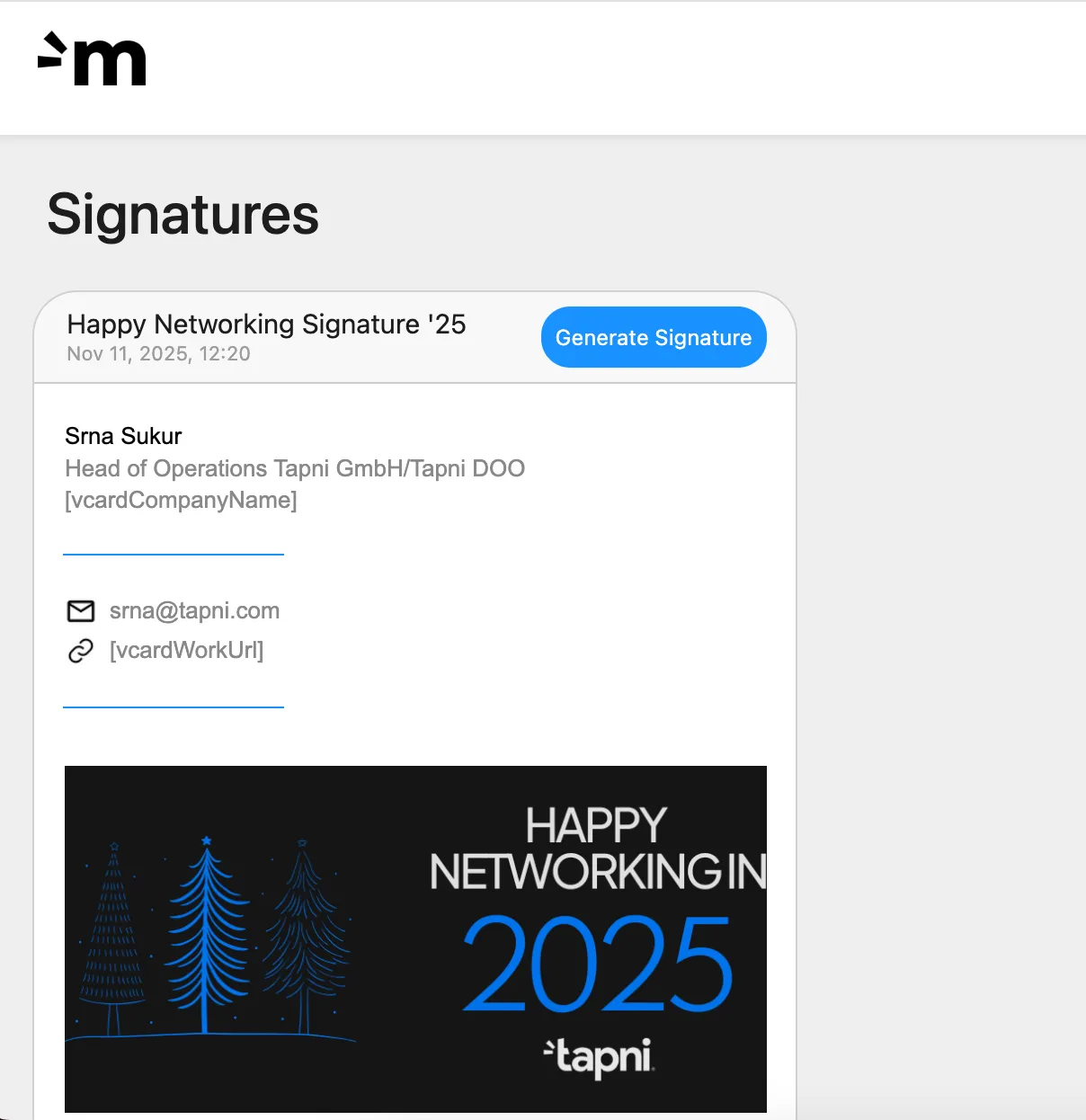
All users in a team that has a template assigned will automatically see that email signature in their MailSign account, with their personal variables (name, title, etc.) filled in.
Each user must log in to their MailSign account using the same credentials they use for Tapni.
👣 Next steps:
APPLE TIPS
1. Open your Apple Mail Preferences
2. Choose the Email Account
3. Create a New Placeholder Signature
+ button to create a new signatureMy Signature)4. Close Apple Mail
Cmd + Q or right-click on the Dock icon → Quit)5. Open the Signature Folder in Finder (for Apple), or paste it in your Email platform
Cmd + Shift + G in Finder (Go to Folder)bash
CopyEdit
~/Library/Mail/V10/MailData/Signatures/
6. Find the Placeholder Signature File
.mailsignature7. Replace With Your WYSIWYG Signature
.mailsignature file<body> tags with your copied content8. Reopen Apple Mail
1. Log in to your MailSign account
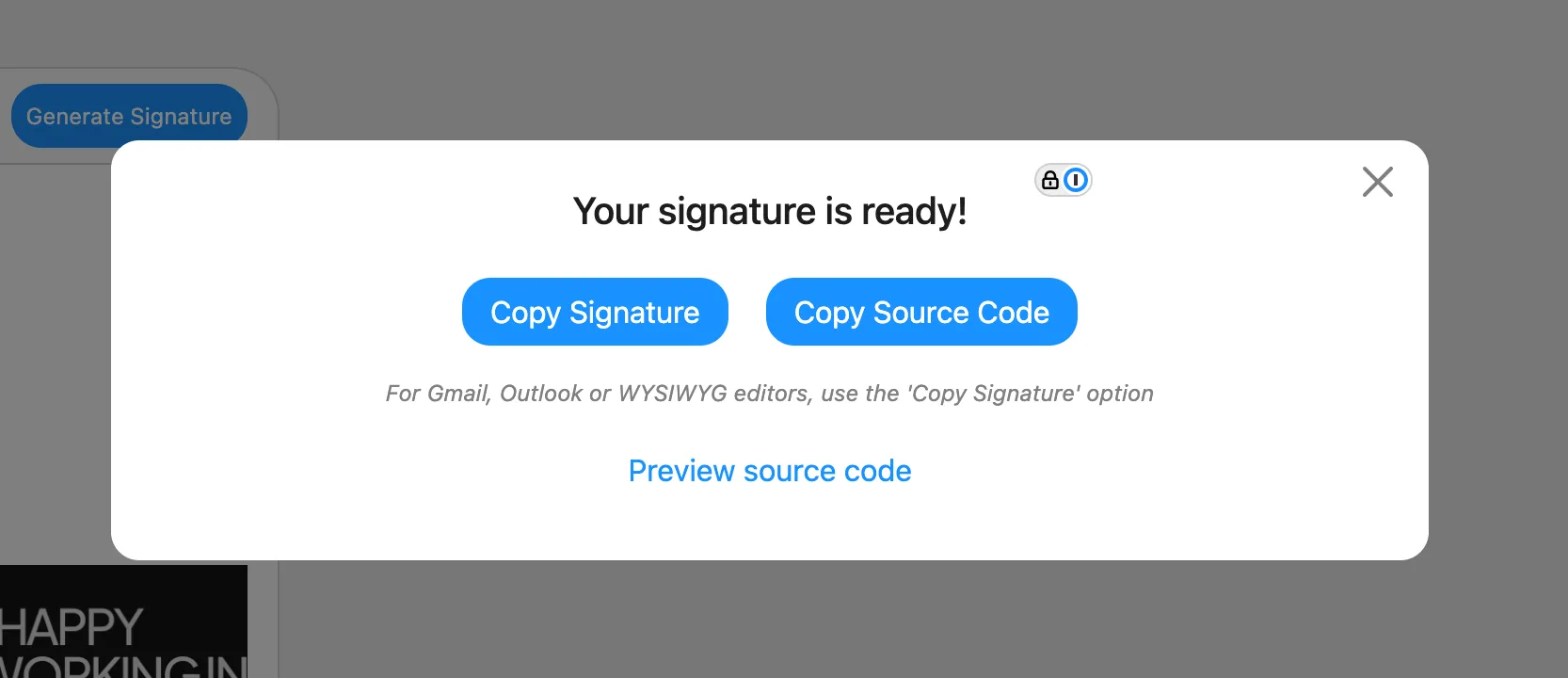
2. Copy your signature from MailSign
3. Open Gmail settings in your browser
4. Go to the Signature section
Company Signature or MailSign Signature).5. Paste your MailSign signature into Gmail
6. Set your default signature for new emails and repliesUnder “Signature defaults” (just below the editor):
7. Save changes
8. Test your signature
➡️ If you are using a specific email platform and something is not clear or doesn’t work as expected, feel free to reach out to us once you’ve tried it. We’ll be happy to create an additional page tailored specifically to your setup and platform. 🤝🏻