How to Assign and Reassign Cards?
If your cards are unnamed, this guide will be especially useful, since they’re a very cost-effective option: the same physical card can be reassigned from one employee to another in just a few clicks, without needing to reprint or replace it.
If your cards are personalized with names, you’ll mainly need the Assigning Cards section.
This guide walks you through:
- how to quickly see which card is assigned to which individual, and
- how to reorder / reassign a card when someone changes roles or leaves (offboarding).
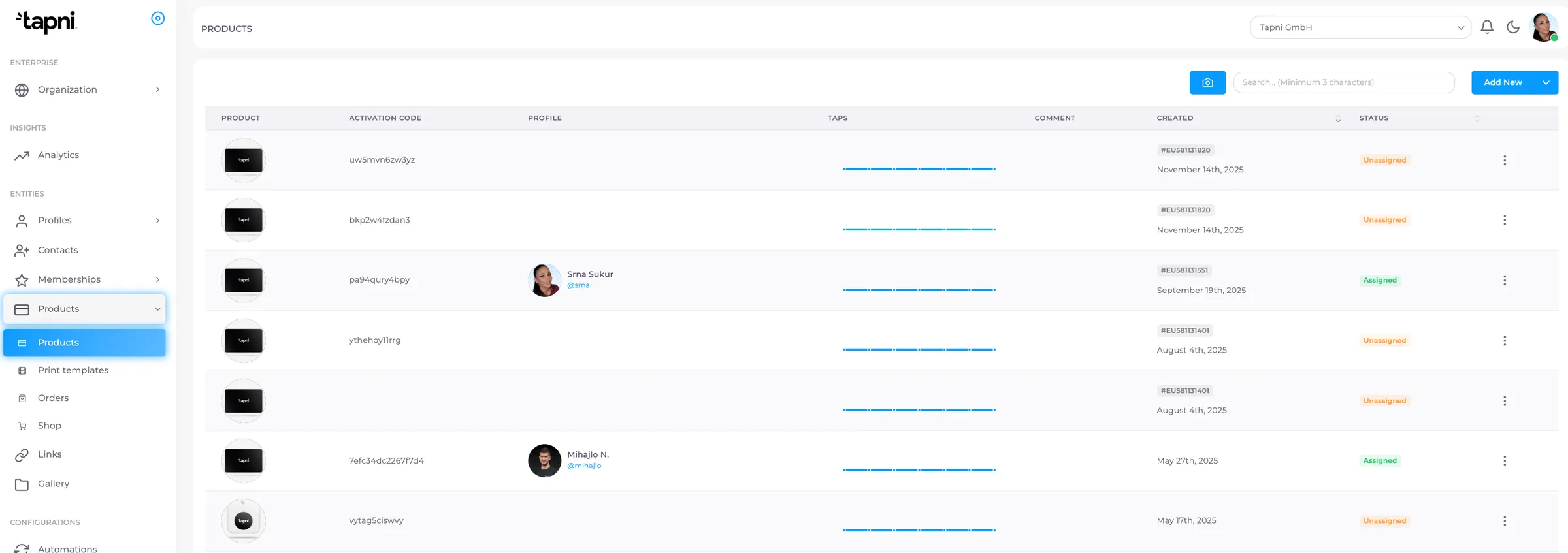
Step 1: Open the Business Admin Dashboard → Products
- Log in to your Business Admin Dashboard.
- In the left sidebar, click Products.
Step 2: Identify the card and assign it to an employee
Once you open Products, you’ll see a full list of your products/cards. In this list, you can clearly see which cards are Assigned and which are Unassigned.
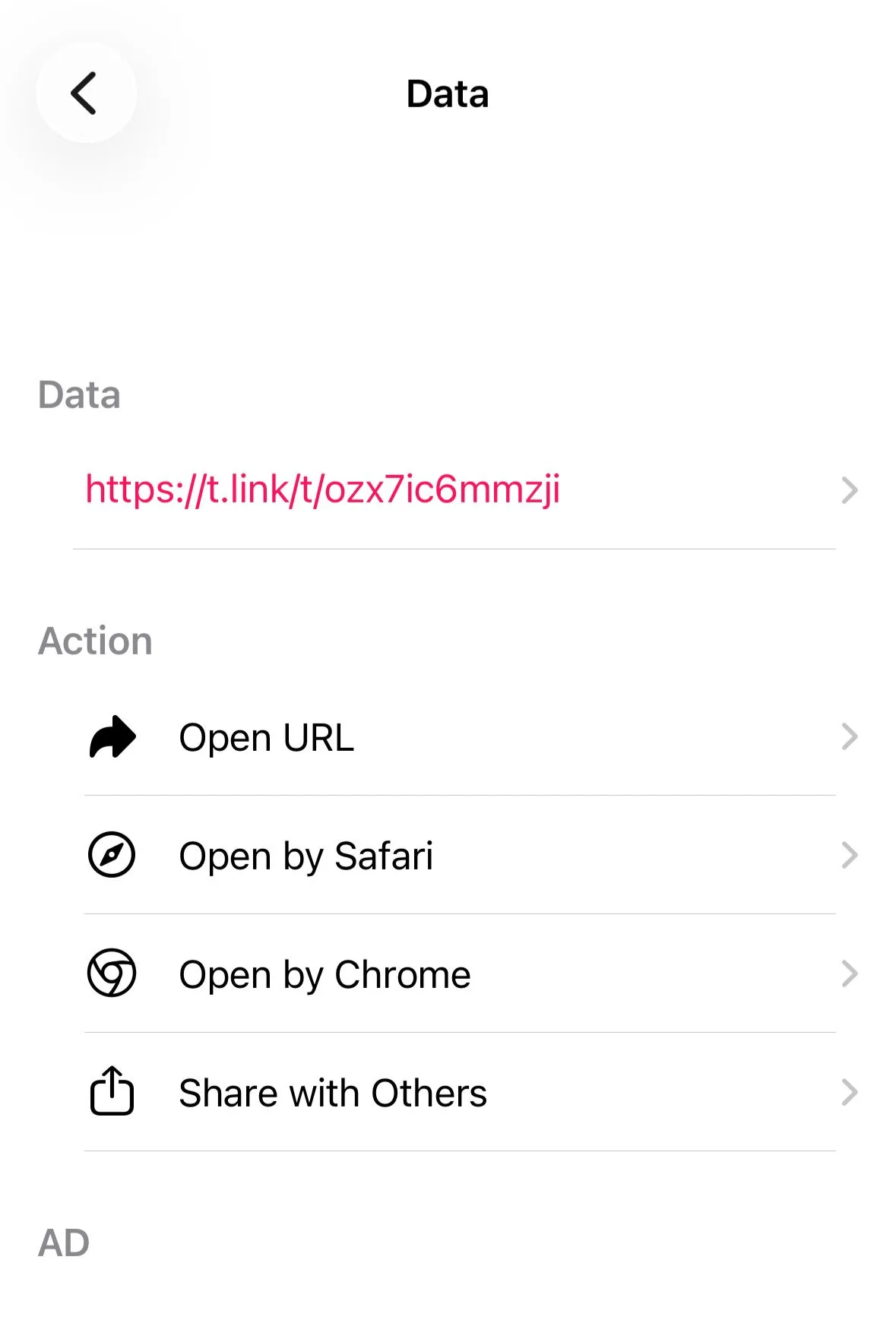
Way to identify the correct card is by using a QR code scanner app (any QR scanning app works). Make sure the app shows the activation code / activation link when you scan the card.
Example: after scanning, you may see a link like:
t.link/ozx7ic6mmzji
In this example, ozx7ic6mmzji is the activation code.
Assign the card
- In the Products list, search for the activation code (e.g., ozx7ic6mmzji) to find the matching card.
- Click the three dots (⋯) on the right side of that card row.
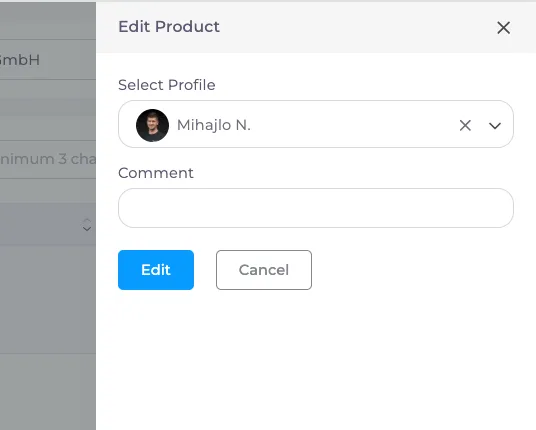
- A small field/menu will appear - enter the employee’s email address.
- Confirm to assign the card to that employee.
If the card is already assigned to someone else (reassigning)
If the card is already assigned to an employee, you can reassign it in the same place:
- In the Products list, find the card (or the employee name next to it).
- Click the three dots (⋯) on the right side.
- Click the small “X” to remove the current assignment (this unassigns the card).
- Enter the email address of the employee you want to assign the card to.
- Confirm/save - and you’re done.
Final note: Removing a departing employee’s profile
After you reassign the card, if an employee is leaving the company you can also remove their profile from the Admin Dashboard:
- Go back to the Profiles section (from the left-hand menu / main dashboard).
- Select the employee profile you want to remove by clicking the checkbox next to it.
- A row of actions will appear at the bottom - choose Delete.
This will remove their Tapni profile from the Admin Dashboard.