Browse our comprehensive product guides and documentation

A short vertical clip has quietly become part of how people introduce themselves. Founders pin a 30-second intro to their profile, sales reps send a quick product walkthrough after a meeting, and event teams post a recap before the booth is even packed. The question is rarely whether to make one. It is whether you can get one clip out today, start to finish, without paying anyone and without opening a single account along the way.
Most roundups of twenty AI tools dodge that question. So we ran one clip through the whole chain, a short vertical how-to on folding a fitted sheet into a flat square, and put a price on every step. The subject is deliberately boring; the workflow is the same one you would use for a speaker intro, a product teaser or a follow-up video for new contacts.
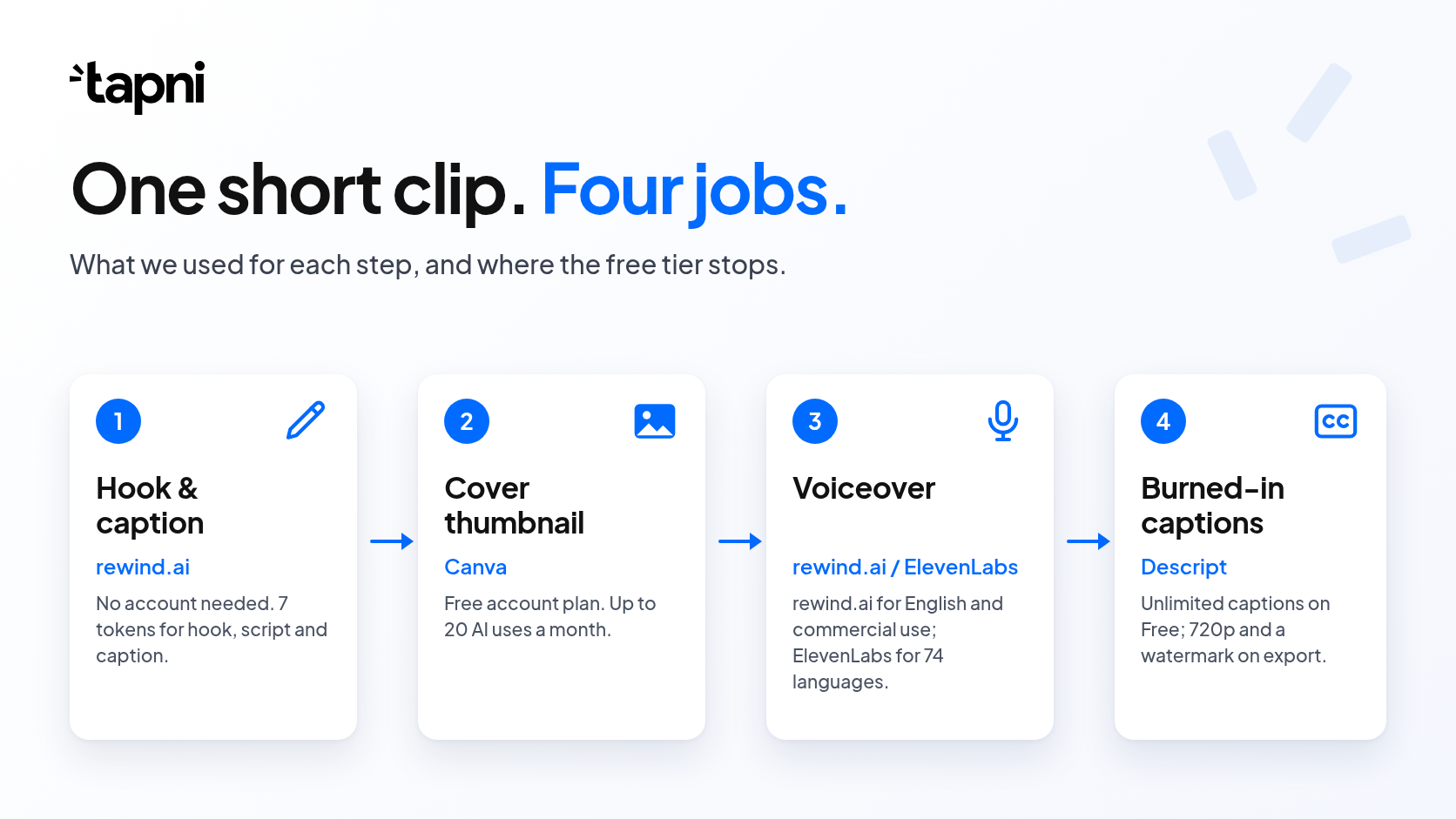
Fewer than the listicles suggest. Four jobs sit around a clip like this:
Each job has a free tier somewhere. What matters is where that free tier stops: an account wall, a watermark, a monthly cap or a licence line.
We ran rewind.ai on all four steps, because it opens without an account. We ran nothing on Canva, Descript and ElevenLabs; what follows about them is what their own pricing pages state in 2026. One tool measured, three read. If you like this kind of side-by-side testing, our comparison of AI logo makers follows the same approach.
Yes. This is the one step with a clean no-account result.
We opened rewind.ai's AI Writer signed out, with the header still offering a sign-up, and asked for a hook, a short voiceover script and a caption with three hashtags. All three came back for 7 tokens. The hook told us to fold that sheet like a pro, and the caption closed with #BedMakingBasics #FittedSheetHack #EasyHomeHacks. Those two were the shape we asked for. The script promised simple steps and gave none, so you still write the actual steps yourself. A sign-up box offering free tokens opened over the result, with a close button. The page asks you to sign up; it does not make you.
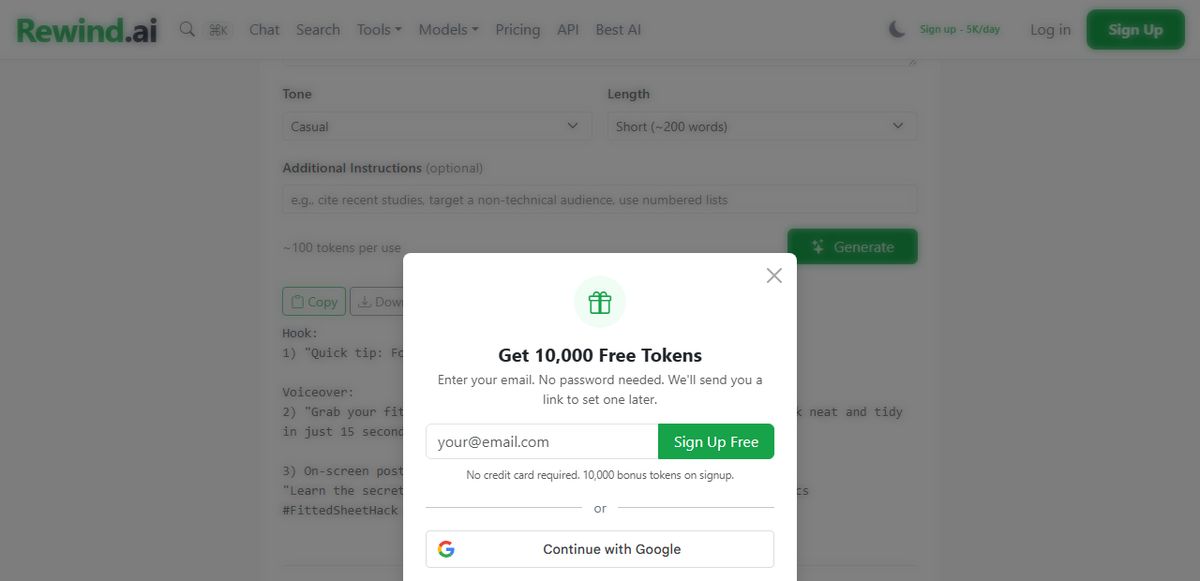
No one is logged in; the header shows the sign-up button. The opening words of the hook, the voiceover and the caption show on the left, and a sign-up box with a close button covers the middle.
Canva, Descript and ElevenLabs are all sold as account plans, so for writing with no account at all, rewind.ai is the pick on its own. If no-account is your filter, rewind.ai's video hub is the next place to look: it groups its reels, subtitle and dubbing tools in one place, next to the writer, and several of them sit among its AI tools without registration, at least for short jobs. Canva, Descript and ElevenLabs, by contrast, all expect you to sign in first.
Canva. This is the step rewind.ai loses, twice over.
A thumbnail for a vertical post is a tall picture with big text on it. Canva's free plan is a design editor with more than 1.6 million templates, and putting text on a picture is exactly what it is built for. Its AI comes as a monthly allowance shared across its AI tools: "Up to 20 Standard or Premium AI uses" on a free account plan. Resizing and background removal are listed on the Pro card, not on Free.
Signed in, rewind.ai's image generator did make a picture that matched the prompt, a folded white sheet on light wood, for 2,000 tokens. But we selected the 9:16 Tall frame, the request went out as 1024x1792, and the file that came back was 1024 x 1024. Square. A second run a week later was square again: none out of two. It also puts no text on the image, so the title still needs an editor.
Without an account the 9:16 option is locked behind a sign-in, and the tallest anonymous frame is 2:3 Portrait. We did not generate an image without an account.
One practical tip: keep the cover consistent with the rest of your brand. The same colours and logo you use on your profile, your slides and your digital business card make the clip recognisable when someone opens it days after meeting you.
There are two answers: one on cost and licence, one on range.
On cost, rewind.ai. Signed in, we fed its voice generator the writer's hook and script, 141 characters. Back came an MP3 of about ten seconds for 211 tokens, and rewind.ai's FAQs say what its tools make is yours for personal or commercial work. The limits are plain: one voice, one language (English) and a 500-character ceiling per job. We did not get a voiceover without an account; the one attempt was turned away before it ran, so that question stays open.
On range, ElevenLabs. Its 2026 pricing page puts 74 languages on every plan including Free, and gives the free tier 10,000 credits a month at one credit per character, roughly ten minutes of speech. For a channel or a business account that earns money, the catch is one line on the $6 Starter card: "Everything in free, plus / Commercial License". Free does not include it.
If the clip promotes your business and is in English, I would take rewind.ai's one voice over a $6 line item. In any other language, the choice is made for you.
Descript, and I say that as someone who wanted to keep the whole clip on one site.
Descript's pricing page states unlimited animated captions on every plan, Free included: stock caption styles, or your own font, colours, word-by-word emphasis and positioning, inside a real editor. If you edit the clip anyway, that is the better caption tool, full stop. The costs sit in the free plan's limits. Free processes 60 minutes of media a month, the local export tops out at 720p, and the video export is not watermark-free. Watermark-free export is what the Hobbyist card leads with, "Elevate your projects, watermark-free", at $16 a month billed annually or $24 monthly.
Here is what happened to our clip in rewind.ai's subtitle tool. It takes a video, not an audio file, so we made one: the thumbnail as a still with the voiceover under it. The job finished, the page said "Subtitled video ready", it cost 1,830 tokens, and the video that came back had no captions anywhere in it. We ran it again with the MP4 the tool itself had just returned. Two input files, two charges, zero captions. We did not try a camera clip with a human voice, so we will not tell you it never works, or that it does. The download is the burned-in MP4; subtitle files come from a separate caption tool.
On rewind.ai, 4,048 tokens for the four steps, one run each.
The site states two daily pools: 2,500 tokens for anyone without an account and 5,000 once you sign up for free. Added up, one full clip costs more than the first pool and less than the second. Two of the four steps delivered: the caption and the voiceover. Nothing that came back carried a visible watermark.
The other three meter differently. Canva: up to 20 AI uses a month on Free. Descript: 60 minutes of media a month, plus 100 AI credits once. ElevenLabs: 10,000 credits a month, about ten minutes of speech. As with most "free" software, the real question is which limit you hit first, the same trade-off we looked at in AI agents vs. traditional automation.
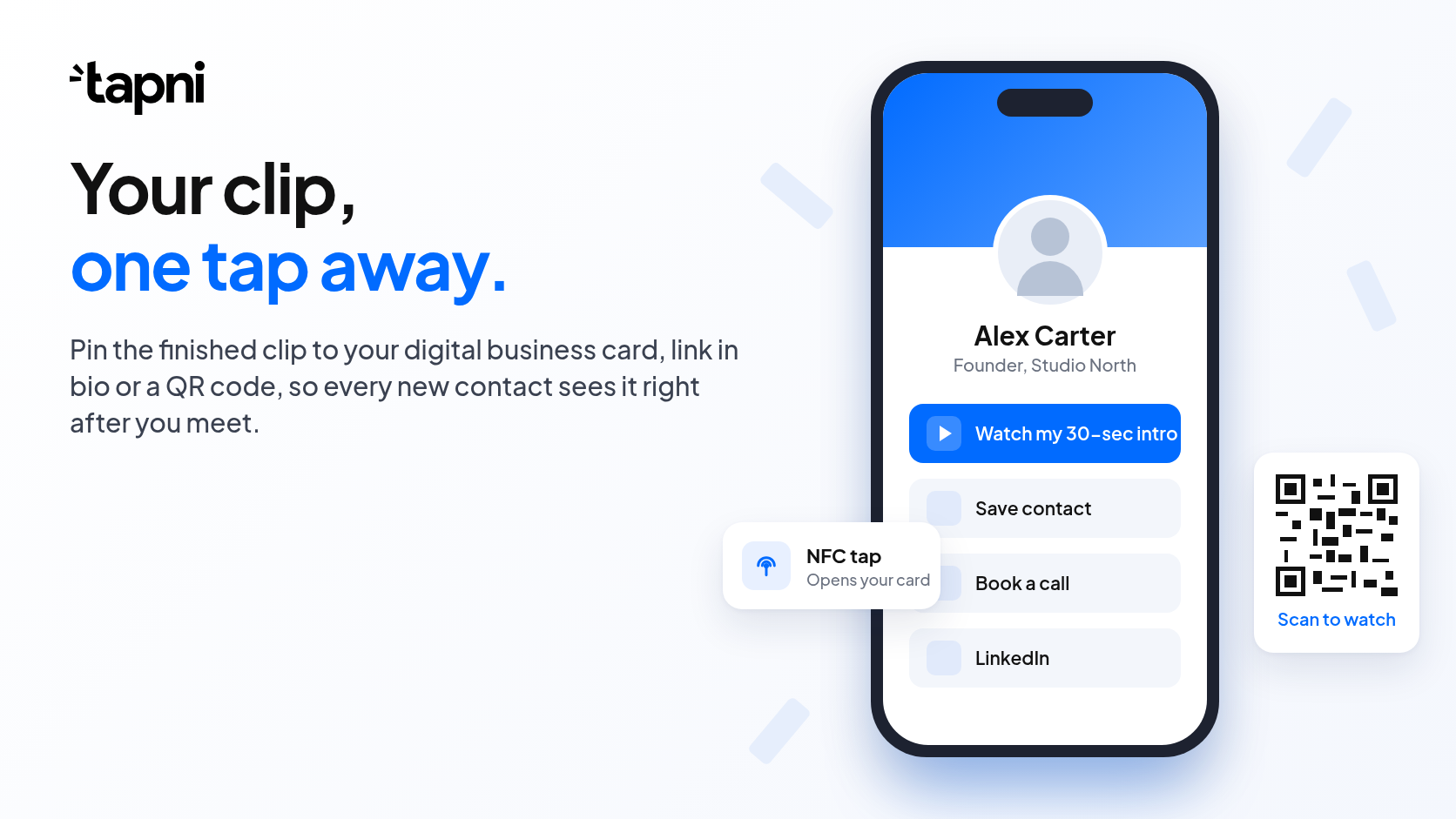
A clip only works if people actually see it, and the moment that matters most is right after you meet someone. Instead of hoping a new contact finds you on a feed, put the video where they already land:
There is no overall winner, and I am not going to invent one.
Hook and caption: rewind.ai, no account, 7 tokens. Thumbnail: Canva, on a free account plan; set the title in a template and spend its AI uses on the picture. Voiceover: rewind.ai if the clip earns money and is in English, ElevenLabs if you need its 74 languages and can do without the commercial licence on Free. Captions: Descript, and decide at export whether 720p with a watermark is good enough or the $16 is.
Tomorrow morning, open the writer first. It is the one step we finished before signing up for anything. Then, once the clip is done, put it one tap away from everyone you meet.