






Someone hands in their notice. HR schedules the exit interview, IT plans to close the email account and the laptop goes back to the office. The digital business card is usually on nobody's list. Weeks later a prospect taps the card they were given at a trade show and still sees the old phone number, or a sales manager finds out that the leads from the last event only ever lived in one person's phone.
Offboarding a digital business card takes a few minutes, but the order matters: secure the leads first, hand over the relationships, then switch off the profile and reuse the card. This guide is for HR and people teams, sales and marketing managers, and the admins who run their company's digital business cards. It covers who does what, a six-step process, the difference between deactivating, disconnecting and deleting a profile, and a checklist you can copy into your offboarding process. The examples use Tapni, a digital business card and lead capture platform for teams that is part of Tapstack.
If you are still planning your rollout, our guide to rolling out digital business cards for teams covers offboarding as the last of seven steps. This article goes into that step in detail.
The short version
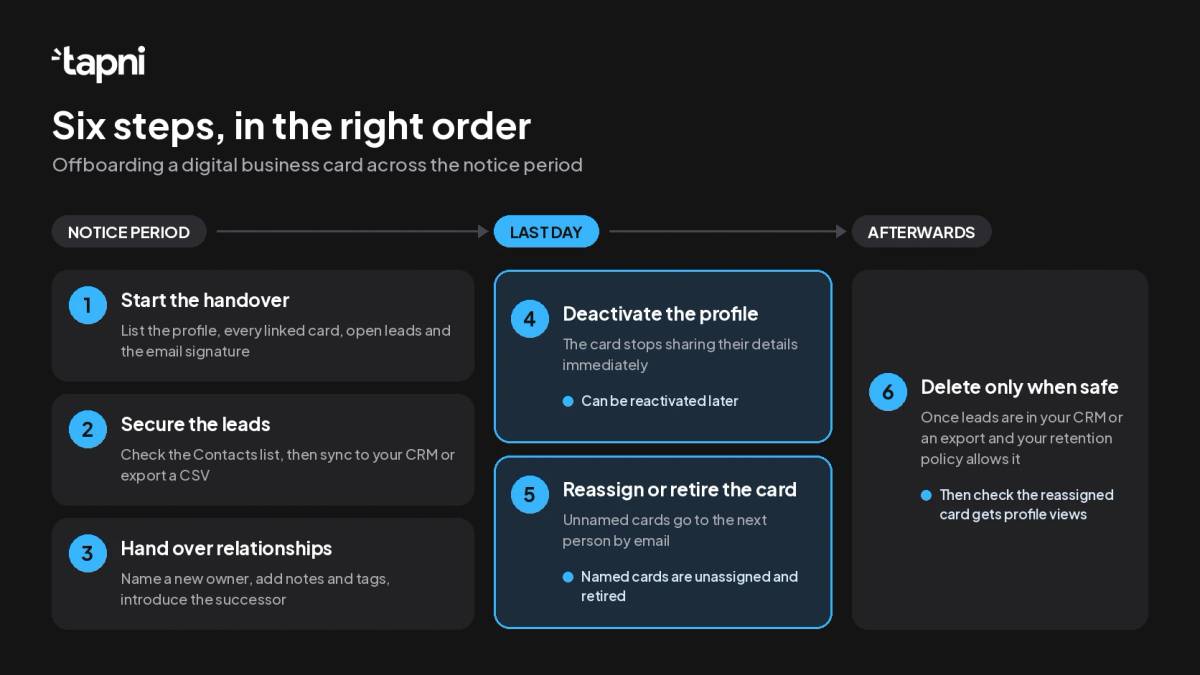
- Start when notice is given, not on the last day. Leads are easiest to secure while the person is still there to explain them.
- Get every lead into the company system first: the Tapni Contacts list, then your CRM or a CSV export.
- Hand relationships over on purpose: a named new owner for every open conversation, a note with the context and a personal introduction for key contacts.
- On the last day, deactivate the profile so the card stops sharing the person's details.
- Reassign unnamed cards to the next person and retire cards printed with the leaver's name.
- Delete the profile last, and only once the leads are safe in your CRM or a saved export.
What goes wrong when a card isn't offboarded
A paper card goes out of date quietly. A digital business card is a live profile, so leaving it alone has real consequences.
- The card keeps working. Until someone switches it off, every NFC tap, QR scan and saved link opens the person's profile, including an email address or phone number that nobody answers any more.
- Leads leave with the person. Contacts that exist only in someone's phone, a stack of paper cards or their memory are gone on their last day. Even leads that were captured properly go cold if nobody is named to follow them up.
- Follow-ups stall in the CRM. Records and tasks still owned by a former employee don't appear in anyone's queue, so open conversations quietly die.
- Cards are wasted. An unnamed NFC card left in a desk drawer could have been reassigned to the next hire in a few clicks.
Who does what
Card offboarding touches HR, sales, IT and whoever administers the cards. Agree the owners once and add them to your offboarding template.
| Role | Responsibility | When |
|---|---|---|
| HR or people team | Starts the process and puts the digital business card on the offboarding checklist | When notice is given |
| Line manager or sales lead | Names a new owner for each account and open lead, and sets up introductions | Notice period |
| Departing employee | Logs outstanding contacts and notes, and introduces their successor | Notice period |
| Tapni admin | Checks the leads are in Contacts and the CRM, deactivates the profile, reassigns or retires the card | Last day |
| CRM or RevOps admin | Moves record ownership, open deals and tasks to the new owner | Last day |
| IT | Removes the user from the identity provider and other company systems | Last day |
In a small company one person may wear several of these hats. What matters is that every line has a name next to it.
How to offboard a digital business card in six steps
The steps follow the notice period: the first three happen while the employee is still working, the next two on their last day, and the clean-up afterwards.
Step 1: Start the handover when notice is given
Make a short inventory of everything connected to the person's card:
- Their profile and the link or custom-domain URL they have been sharing.
- Every physical product linked to it. One Tapni profile can have several products connected, such as a card, a sticker or a keychain, so check them all.
- Their open leads and accounts, including anything from recent events.
- Anything else built on their profile, such as a company email signature.
Agree the date the card will be switched off. In most companies that is the same day email access ends.
Step 2: Get every lead into the company system
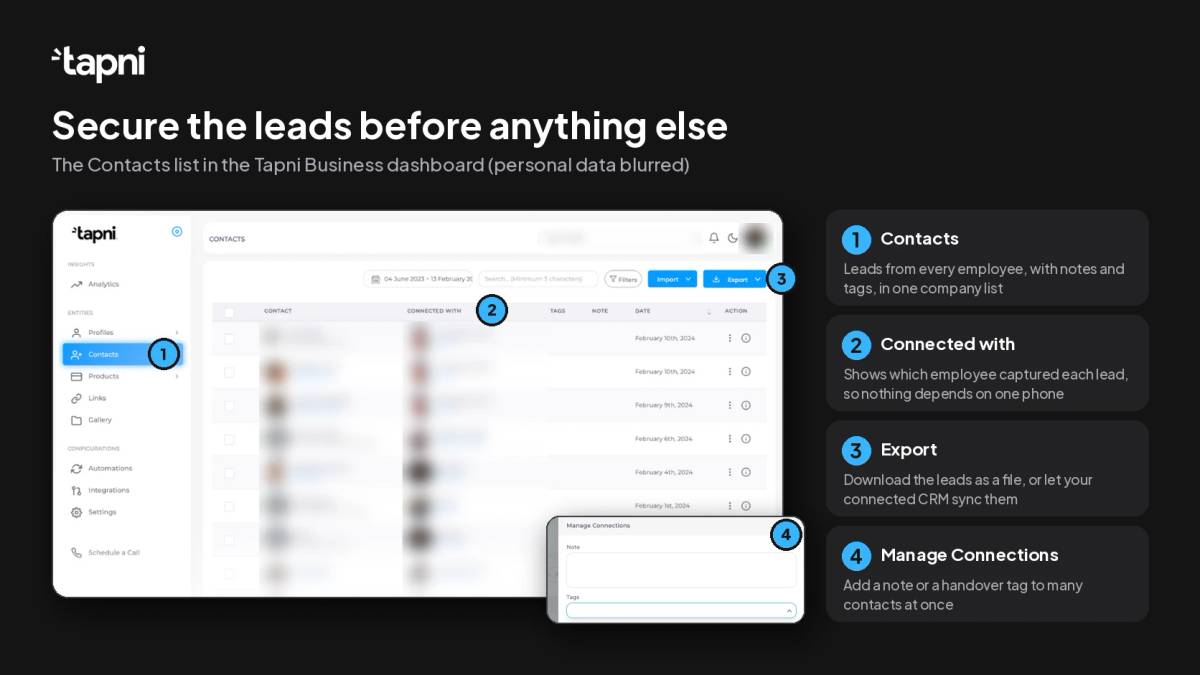
In Tapni, leads from the contact exchange form on a profile, the AI business card scanner in the Tapni app and manual entry land in the Contacts section of the admin dashboard, with their notes and tags. The Connected with column shows which employee each lead came from, so an admin can see what the departing person has collected without asking for their phone.
Then close the gaps. Ask the employee to scan any paper cards still in their desk with the card scanner and to add notes to recent conversations. Contacts saved only to a personal address book, or still on paper, are outside any company system until someone captures them.
Finally, make sure the leads are where your team actually works. If your CRM is connected, Tapni syncs contacts automatically to HubSpot, Salesforce, Pipedrive, Microsoft Dynamics and other CRMs, so check that the person's latest leads have arrived. Without a CRM, export the contacts as a CSV file and store it where the new owner can reach it. Our guide to digital business card CRM integration explains the setup and how to test it.
Step 3: Hand over the relationships, not just the data
A lead list is not a handover. For every open conversation, name the new owner and write down the context: what was discussed, what was promised and what happens next.
- In Tapni: select the person's contacts and use Manage Connections to add a note or a tag to all of them at once, for example a tag with the new owner's name. You can filter the Contacts list by that tag later. The guide to managing users and contacts in bulk shows the bulk actions.
- In your CRM: change the record owner and move open deals and tasks to the new owner, so follow-ups appear in their queue rather than a former colleague's.
- With key contacts: ask the departing employee to send a short introduction to their successor. A client who hears about the change from someone they know is far more likely to stay in touch than one who finds a dead link.
Step 4: Deactivate the profile on the last day
Deactivation is the step that stops the card from sharing the person's details. From the Tapni Business dashboard, an admin can deactivate a departing employee's profile in one click, and their card stops sharing their details immediately. While a profile is deactivated, nobody can open it and the products connected to it stop working. The account is not deleted, and the profile can be reactivated later. Employees can also deactivate their own profile in the app settings.
Timing matters. Deactivate too early and the employee can't finish their handover. Deactivate too late and customers keep reaching someone who no longer works for you. If your company's email signatures are managed in the Tapni dashboard, remove the person's signature access in the same step.
If your team's profiles are created and updated from Microsoft Entra ID, Okta or Google Workspace, IT will remove the user from the directory anyway. Agree with your Tapni admin how that removal is reflected in Tapni for your setup, and check the profile's status in the dashboard on the last day either way.
Step 5: Reassign or retire the physical card
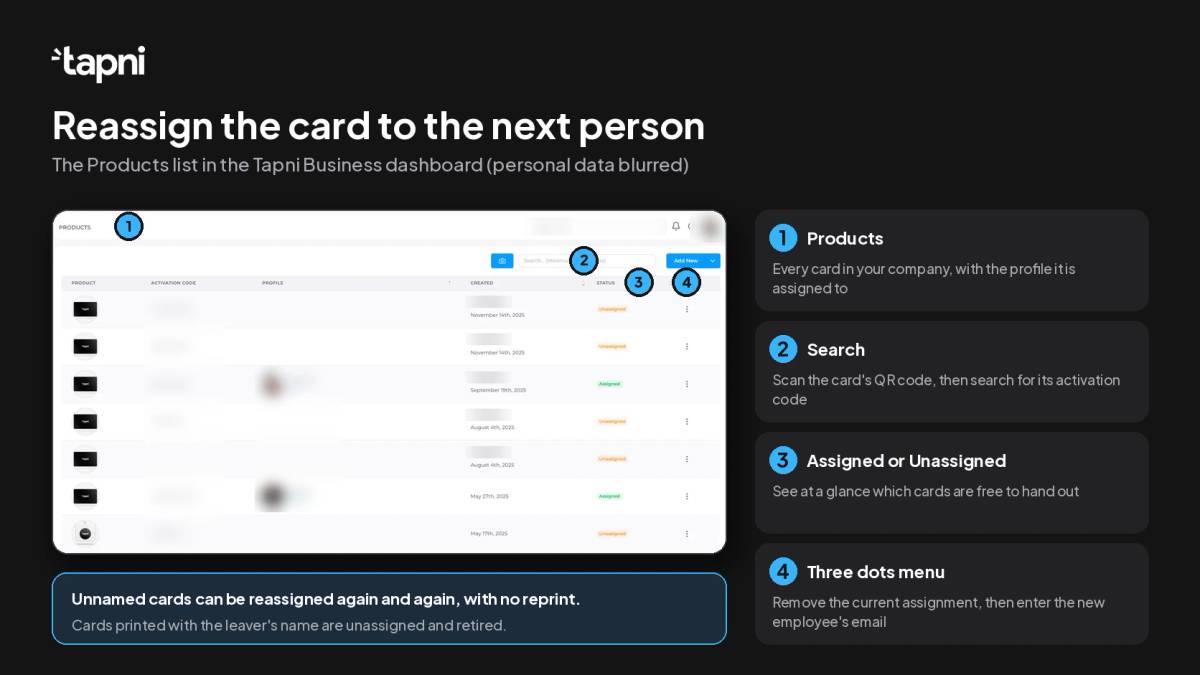
In the dashboard, the Products section lists every card and shows whether it is assigned or unassigned. To find a specific card, scan its QR code with any QR scanner app. The link it shows contains the card's activation code, which you can search for in the Products list. Then:
- Click the three dots on the card's row.
- Click the small X to remove the current assignment.
- Enter the email address of the employee who should get the card, and confirm.
Unnamed cards can be moved this way as often as you need, without reprinting anything. Cards printed with the leaver's name should be unassigned and retired. If your team has regular turnover, for example event staff or seasonal sales roles, unnamed cards make this step cheaper. The help article on assigning and reassigning cards walks through the screens.
Tapni Business includes a standard NFC card for every user. For how per-user pricing works as your headcount changes, see our guide to digital business card pricing for teams.
Step 6: Delete the profile only when the leads are safe
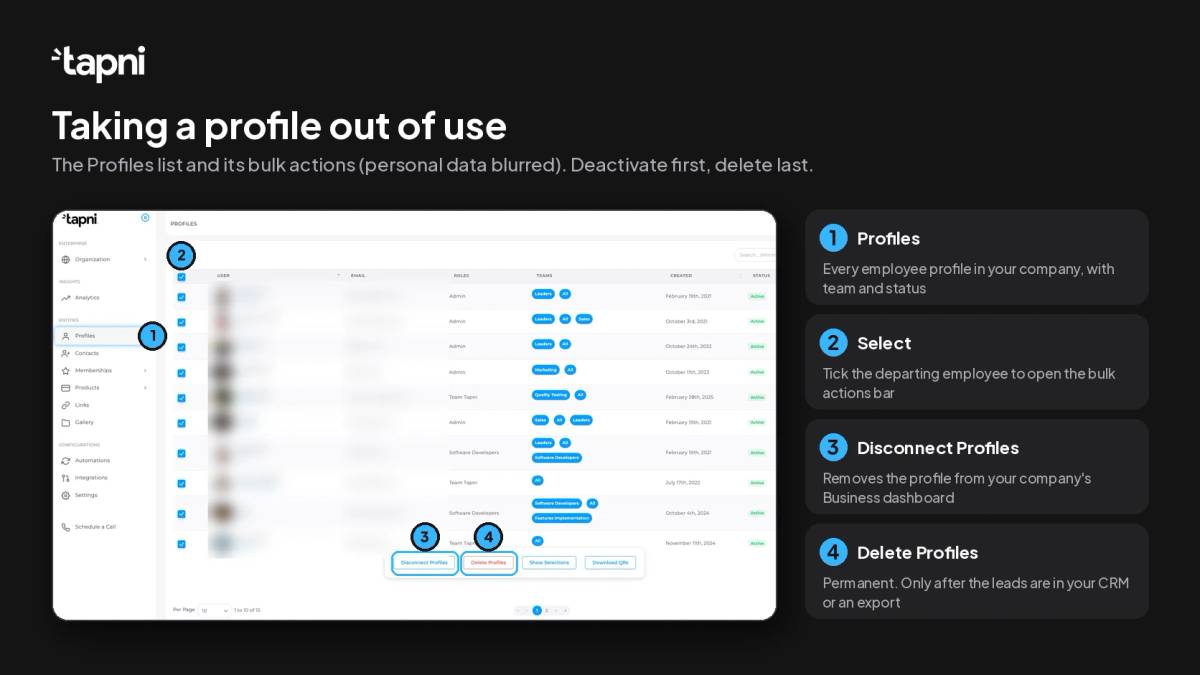
Once the card is reassigned, an admin can remove the departing employee's profile in the Profiles section: tick the checkbox next to it and choose Delete from the action bar at the bottom of the screen. Deletion is permanent. Before you delete, confirm that the person's leads are in your CRM or in a saved export, and check your company's data retention policy, which may say how long you keep or when you remove personal data.
A week or two later, check that the reassigned card is actually in use. See your most active employees and each person's profile views by NFC tap, QR scan and link, with date filters and CSV/XLSX/PDF export. A reassigned card with no views usually means it is still sitting in a drawer.
Deactivate, disconnect or delete: what each one does
The admin dashboard offers more than one way to take a profile out of use. They are not interchangeable.
| Action | What it does | When to use it |
|---|---|---|
| Deactivate the profile | Nobody can open the profile and its connected products stop sharing it. The account is kept and can be reactivated. | The default on an employee's last day, and for long leave |
| Reassign the card | Moves the physical card to another employee by email address | When the role is backfilled or the card is unnamed |
| Disconnect the profile | Removes the profile from your company's Business dashboard | Only after the leads are secured, if the profile should no longer be managed by your company |
| Delete the profile | Permanently removes the profile | Last, once leads are in your CRM or an export and your retention policy allows it |
If in doubt, deactivate. It stops the card from sharing the person's details straight away and can be undone, which deleting cannot.
Special cases
Someone changes role, not company
Don't offboard them. Update their title and move them to their new team in the dashboard. Templates and company links are assigned per team, and new team members receive the team's links automatically, so the card picks up the new branding and resources while the profile and its leads stay in place.
Parental leave or a sabbatical
Deactivate the profile for the duration and reactivate it when the person returns. Hand over open leads in the same way as for a leaver, so nothing waits months for a reply.
Temporary staff and event helpers
Give them unnamed cards and reassign the cards after the event. Make sure their leads are tagged with the event and synced before you deactivate their profiles.
A card is lost
This is not an offboarding, but it uses the same tools. Remove the lost card from the profile so nobody can use it, then connect a new card to the same profile. The profile, its link and its leads stay as they are.
Digital business card offboarding checklist
Copy this into your HR offboarding template so the card is handled every time, not only when someone remembers.
| When | Task | Owner |
|---|---|---|
| Notice given | Add the digital business card to the offboarding ticket | HR |
| Notice given | List the profile, every linked card or product, open leads and the email signature | Tapni admin |
| Notice period | Scan remaining paper cards and add notes to recent contacts | Departing employee |
| Notice period | Name a new owner for every open lead and tag the contacts | Manager |
| Notice period | Introduce the successor to key contacts | Departing employee and successor |
| Last day | Confirm the leads are in the CRM, or export them as CSV | Tapni admin or RevOps |
| Last day | Move CRM record ownership, open deals and tasks | CRM admin |
| Last day | Deactivate the profile and remove email signature access | Tapni admin |
| Last day | Reassign unnamed cards, retire named ones | Tapni admin |
| Last day | Remove the user from the identity provider | IT |
| Afterwards | Delete the profile in line with your retention policy | Tapni admin |
| Afterwards | Check the reassigned card is getting profile views | Manager |
FAQ
What happens to an employee's leads when they leave?
That depends on where the leads were captured. In Tapni, leads from the profile form, the card scanner and manual entry sit in the company's Contacts list, where admins can see who captured each one, export them or sync them to a CRM. Contacts kept only in a personal phone or on paper are not, so capture them during the notice period. Secure the leads before you delete a profile, because deletion is permanent.
Can we reuse a departing employee's NFC card?
Yes, if the card isn't printed with their name. An admin removes the current assignment in the Products section and assigns the card to another employee by email address. The next tap opens the new owner's profile.
Should we deactivate or delete the profile?
Deactivate first. The card stops sharing the person's details immediately and the change can be undone. Delete later, once the leads are in your CRM or an export and your retention policy says the data should go.
Does the card still work after the profile is deactivated?
Not for the former employee. While a profile is deactivated, nobody can open it and the connected products stop working. If you reassign the card, it opens the new owner's profile instead.
How long does offboarding a digital business card take?
The admin steps take a few minutes. The handover of relationships takes longer, which is why it starts when notice is given rather than on the last day.
Make card offboarding part of your routine
Offboarding a digital business card is a five-minute task when it is on the checklist and a lost pipeline when it isn't. Secure the leads, hand over the relationships, deactivate the profile and give the card a second life. To see how the Tapni Business dashboard handles profiles, cards and leads for a team like yours, visit Tapni for Business or book a 30-minute demo with our team.


