





A trade show day can produce forty good conversations. A week later, the CRM often shows a handful of them. The rest are still in phone contacts, in a stack of paper cards, or in someone's memory. The problem usually isn't the sales team's effort. It's the gap between the moment a contact is captured and the moment it becomes a record someone owns in the CRM.
A digital business card CRM integration closes that gap. Every contact an employee collects lands in one company list, tagged with who met them and why, and moves into the CRM without anyone retyping it. This guide is for sales ops, RevOps and marketing teams setting this up for a whole team. It explains how the sync works, the three ways to connect a digital business card to HubSpot, Salesforce or Pipedrive, a seven-step setup plan, and the problems to check for before launch. The examples use Tapni, a digital business card and lead capture platform that is part of Tapstack.
What a digital business card CRM integration actually does
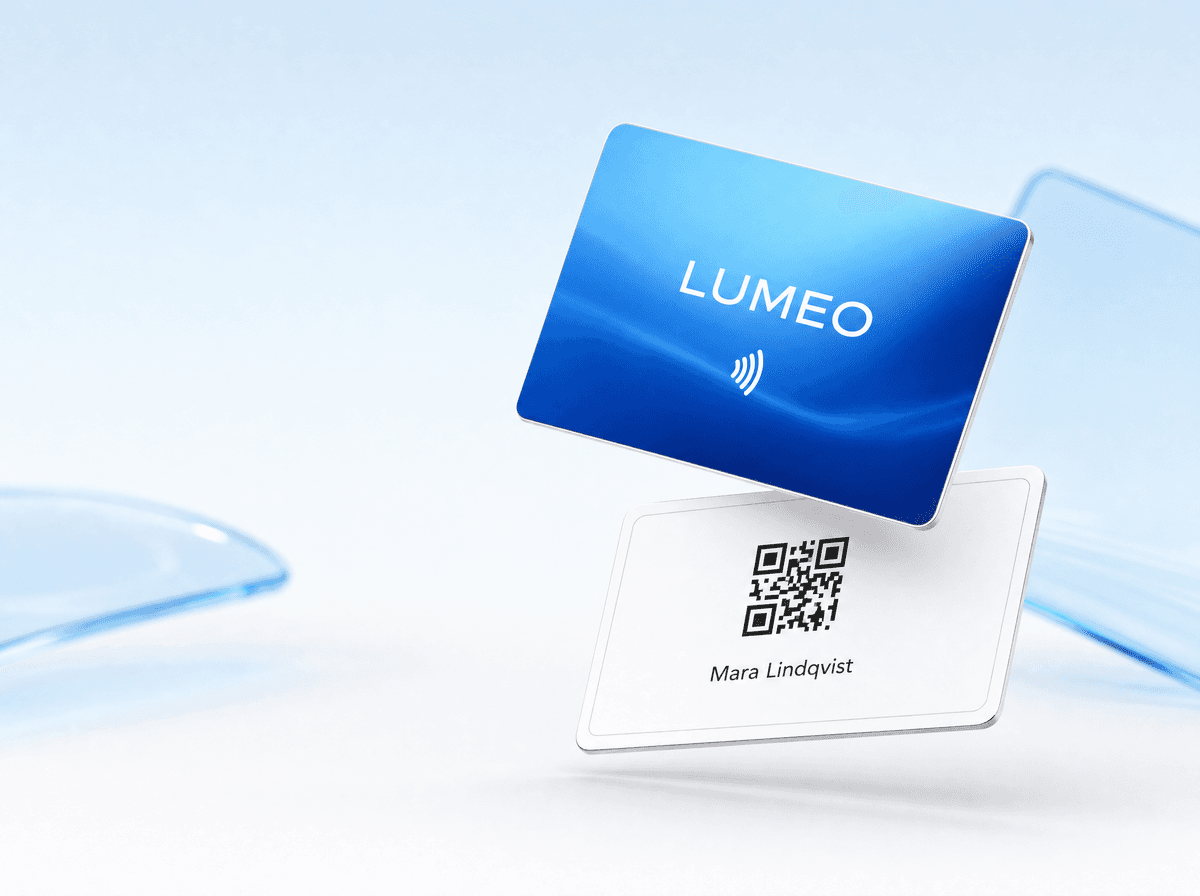
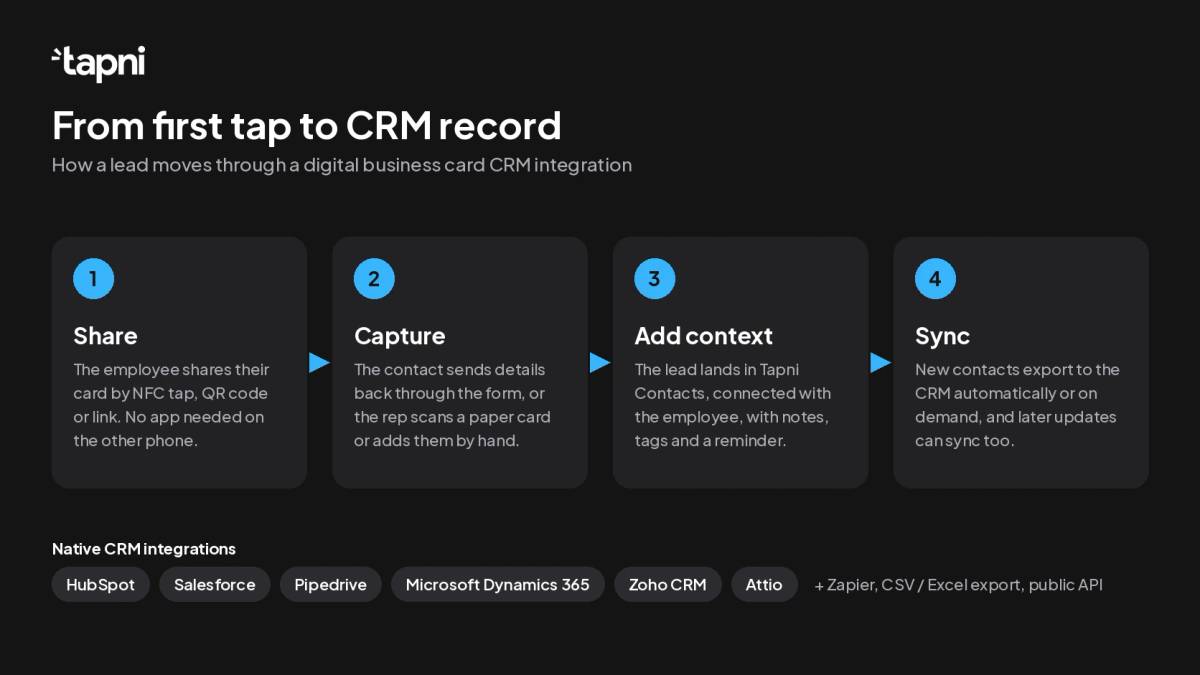
A digital business card does two jobs at once. It shares your employee's details when someone taps the NFC card or scans its QR code, and it captures the other person's details in return. The CRM integration is what happens next: it moves those captured contacts from the card platform into your CRM.
In Tapni, a lead can come from three places:
- The contact exchange form on every profile. After opening your employee's card, the other person can send back their own name, email and phone number.
- The AI business card scanner in the Tapni app, for people who still hand over paper cards.
- Manual entry in the app, for a contact someone met without exchanging cards.
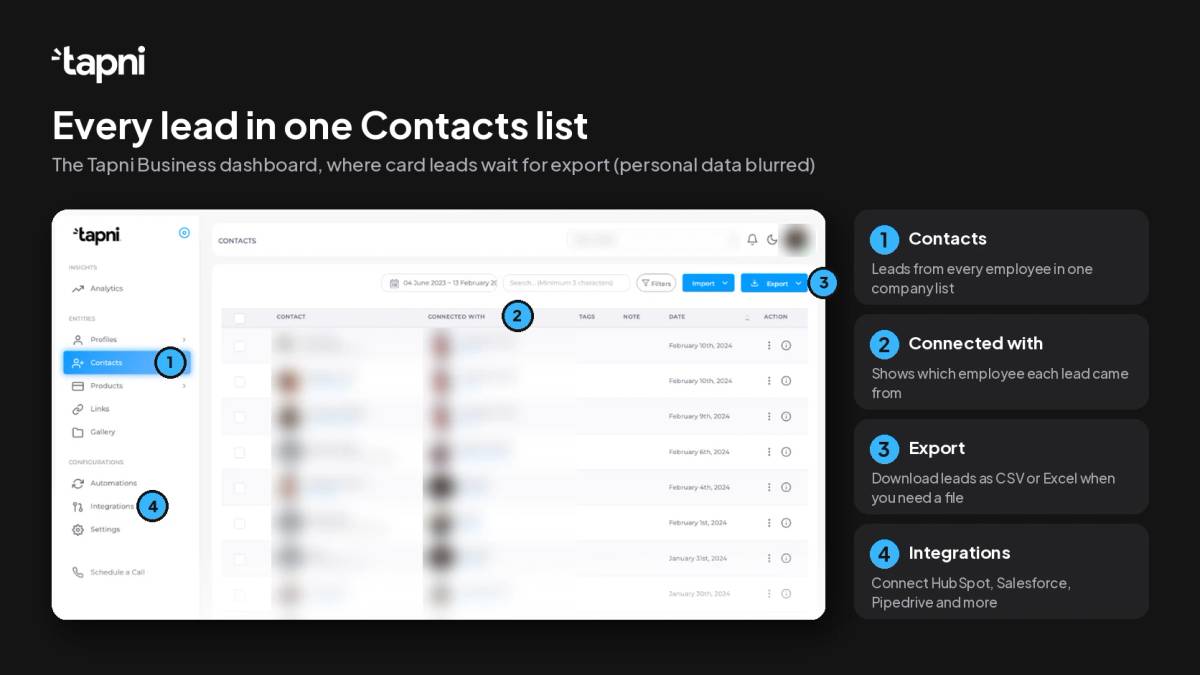
All three end up in the Contacts list of the Tapni Business dashboard. Each contact shows which employee it is connected with, plus any notes, tags and follow-up reminders added at the event. From there, the integration exports new contacts to your CRM, either automatically or when an admin chooses to.
That middle step matters more than it looks. A CRM record that only says "Jane Smith, jane@company.com" is hard to act on. A record that says who met Jane, at which event and what she asked for is a lead someone can follow up on the same day.
Three ways to get leads from digital business cards into your CRM
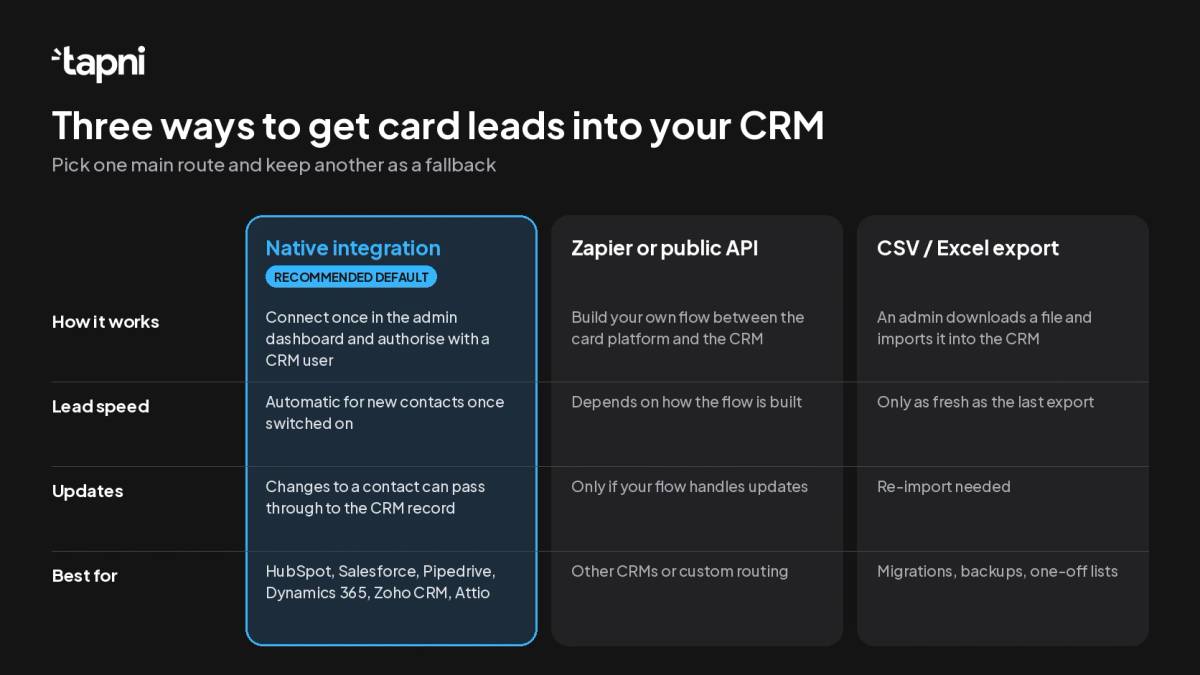
There are three common ways to connect a digital business card platform to a CRM. Most teams use one as the main route and keep another as a fallback.
1. Native CRM integration
A native integration is built by the card platform for one specific CRM. You connect it once from the admin dashboard, authorise it with a CRM user account, and choose whether new contacts are exported automatically. This is the route to choose if your team lives in a mainstream CRM and wants leads to arrive without anyone running an export.
2. Zapier or a public API
If your CRM isn't on the native list, or you want custom logic (for example, routing event leads to a separate pipeline or enriching them first), an automation tool or the platform's API can bridge the gap. Tapni connects to Zapier and offers a public API. This route is flexible, but someone has to build and maintain the flow, and it adds another tool to check when a lead goes missing.
3. CSV or Excel export
Every team platform should let admins export contacts to a file. In Tapni, leads can be exported as CSV or Excel from the dashboard. Exports are the right tool for a one-off migration, a CRM you are about to replace, or a weekly backup. They're the wrong tool for day-to-day lead flow, because a lead that waits for a Friday export has gone cold by Monday.
Which CRMs Tapni connects to
Tapni Business has native CRM integrations for HubSpot, Salesforce, Pipedrive, Microsoft Dynamics 365, Zoho CRM and Attio. On top of those, it works with Zapier, Microsoft Outlook, SFTP export and a public API. The full list is on the CRM integrations page.
For HubSpot, Salesforce and Pipedrive, the integration covers two settings that matter most to sales ops:
- Automatic export of new contacts. You control from the Tapni dashboard whether newly captured contacts go to the CRM straight away or are exported manually.
- Automatic sync of updates. You also control whether later changes to a contact's details in Tapni are passed through to the matching CRM record.
Don't confuse CRM integrations with directory integrations. Tapni also connects to Microsoft Entra ID, Google Workspace and Okta, but those sync your employees (who gets a card and profile), not the leads they collect. A typical company setup uses both: the directory keeps the team list current, and the CRM receives the leads.
HubSpot: decide on lifecycle stage and source
HubSpot teams usually care about two things once card leads arrive: which lifecycle stage they start in, and how they're marked as event or networking leads so marketing can report on them. Agree on both before you switch on automatic export, and tell the team which tags to use in Tapni so the context travels with the contact.
Salesforce: decide between leads and contacts, and who owns them
Salesforce separates unqualified leads from contacts at existing accounts, and many orgs have assignment rules and required fields. Check with your Salesforce admin which object card leads should become, which fields are mandatory and how ownership is assigned, then test with a sandbox record or a clearly labelled test lead first. Connect the integration with a Salesforce user that will stay active. If that user leaves or loses access, the connection has to be authorised again.
Pipedrive: decide whether a card lead is a person, a lead or a deal
Pipedrive is built around a visual pipeline, so the question is how far a card contact should travel on its own. Most teams treat it as a new person or lead for the rep to qualify, not an automatic deal. Keep the pipeline clean by letting reps promote leads after the first follow-up call.
How to set up a digital business card CRM sync in 7 steps
The setup itself takes minutes. The planning around it is what decides whether the data is useful. If you are rolling out cards to the whole company at the same time, the team rollout plan covers the wider project. These steps focus on the CRM part.
Step 1: Pick one owner and one CRM destination
Name one person, usually in sales ops or RevOps, who owns the integration on both sides. They need admin rights in the Tapni Business dashboard and a CRM account with permission to create records. Agree on one destination: one CRM, and if relevant, one pipeline or lead queue for card leads.
Step 2: Get the team list right first
Every lead is tied to the employee it is connected with, so make sure every person who will collect leads has a profile with a correct name and email before you connect anything. Group people into teams (for example Sales DACH, Events, Partnerships) so you can filter leads later. The guide to managing users in bulk shows how to do this for many profiles at once.
Step 3: Connect the CRM from the Tapni dashboard
In the Tapni Business dashboard, open Integrations, choose your CRM and authorise the connection with the CRM account from step 1. Use a long-lived integration or admin user rather than the account of someone likely to change roles, so the connection doesn't break when they do.
Step 4: Decide what a card lead should look like in the CRM
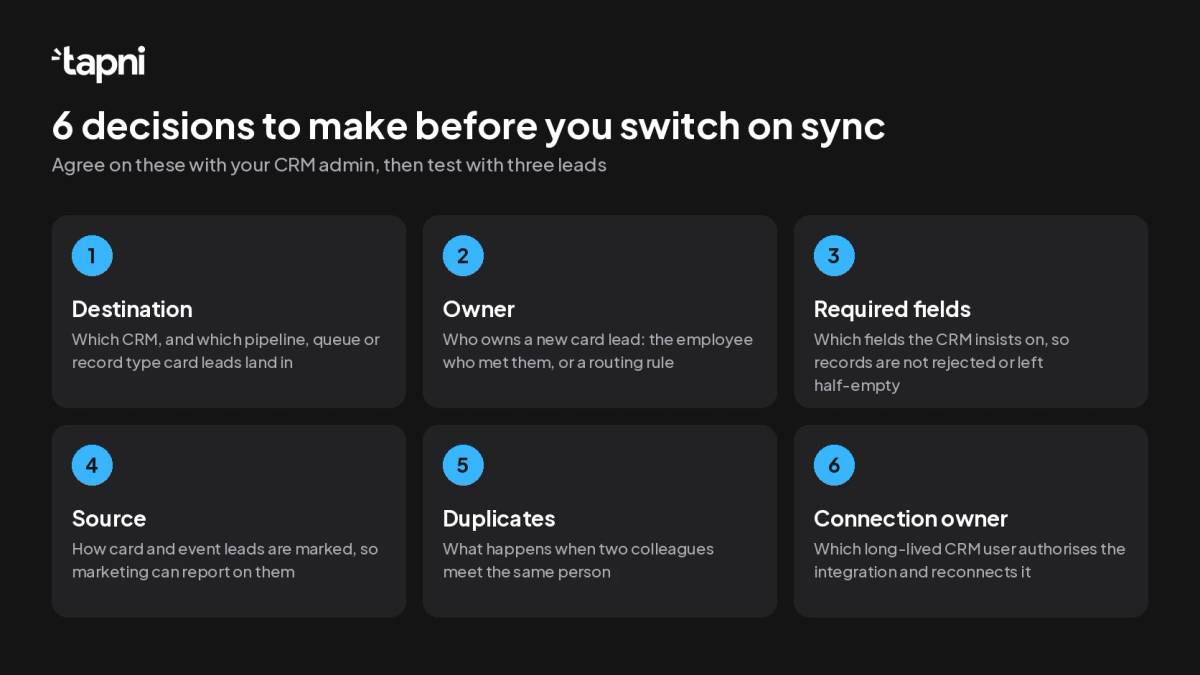
Before any data moves, write down what a good card lead looks like on the CRM side: which record type it becomes, who owns it, which fields are required and how you'll mark its source. Most teams want the employee who captured the lead, the date and the notes to be visible on the CRM record, not just the name and email. If you need more control over how Tapni fields map to your CRM, the Enterprise plan adds advanced CRM mapping, along with SSO and SCIM provisioning.
Step 5: Choose automatic or manual export
For most sales teams, automatic export of new contacts is the right default, because it removes the step people forget. Choose manual export if leads need a human check first, for example when a booth collects many students or competitors, and give one person a daily slot to review and export. Then decide whether updates made in Tapni should flow through to existing CRM records. Turning this on keeps details current when a rep corrects a phone number or adds a note after the event.
Step 6: Test with three test leads
Before the next event, create three clearly labelled test contacts, one through each capture route: the contact form on a profile, the card scanner and manual entry. Check each one in the CRM. Is it the right record type? Does it have an owner? Did the notes and tags come across? Then edit one in Tapni and confirm the change reaches the CRM if you turned on update sync. Delete or mark the test records when you're done.
Step 7: Train the team to add context on the spot
The integration moves data. It can't add the context only the rep knows. Ask the team to add a one-line note and a tag right after each conversation ("wants pricing for 40 seats", "follow up after Q1") and to set a follow-up reminder for hot leads. Ten seconds at the booth saves a guessing game in the CRM a week later. Our guide to the most common mistakes reps make when exchanging contact info is a good pre-event briefing.
Common CRM sync problems and how to avoid them
Most "the integration isn't working" tickets come down to a handful of causes. Check these before launch and after the first big event.
| Problem | Typical cause | How to prevent it |
|---|---|---|
| Leads stop arriving | The CRM user who authorised the connection left, changed password or lost permissions | Connect with a long-lived integration user and re-authorise straight away when access changes |
| Duplicate records | The same person met two employees, or a lead was also imported by hand | Agree on one route per lead source and use your CRM's duplicate rules |
| Leads with no owner | CRM assignment rules don't know what to do with card leads | Decide ownership in step 4 and test it in step 6 |
| Leads with no context | Notes and tags weren't added at the event | Brief the team before each event and check a sample of leads the day after |
| Leads stuck in phones | Employees saved contacts to their personal address book instead of capturing them in the app | Show the team the contact form and scanner, and explain that only captured leads reach the CRM |
If your team still collects many paper cards, the scanner matters as much as the integration. Our overview of AI business card scanners for CRM integration covers what to look for.
How to measure whether the sync is working
Two numbers tell you most of what you need. First, compare the contacts captured in Tapni with the card leads created in the CRM for the same week. They should match, apart from anything you chose to keep out. Second, check what share of card leads got a follow-up within your target time, for example two working days. If leads arrive but nobody follows up, the problem is process, not technology.
On the Tapni side, admins can also check whether the cards are being used at all. See your most active employees and each person's profile views by NFC tap, QR scan and link, with date filters and CSV/XLSX/PDF export. Low profile views for a team that just attended an event usually means the cards stayed in their pockets, which no CRM integration can fix.
What to look for when choosing a digital business card for CRM sync
If you are still comparing platforms, ask every provider the same questions:
- Is there a native integration for our CRM, or only Zapier?
- Can we choose between automatic and manual export, and do updates sync to existing records?
- Does every lead show which employee captured it, and does that reach the CRM?
- Which capture routes are included: contact form, paper card scanner, manual entry?
- Is the CRM integration included in the team plan, or a paid add-on?
- Can we export everything to CSV or Excel if we ever switch CRM?
Our comparison of the best digital business cards for teams looks at how the main platforms answer these questions.
FAQ
Which CRMs does Tapni integrate with?
Tapni has native integrations for HubSpot, Salesforce, Pipedrive, Microsoft Dynamics 365, Zoho CRM and Attio. It also works with Zapier, Microsoft Outlook, SFTP export and a public API, and leads can be exported as CSV or Excel.
Do leads go to the CRM automatically?
They can. Admins choose in the Tapni dashboard whether new contacts are exported to the CRM automatically or manually, and whether later updates to a contact's details are passed through to the CRM record.
Can we see which employee captured each lead?
Yes. In the Contacts list of the Tapni Business dashboard, every lead shows which employee it is connected with, along with notes, tags and follow-up reminders.
Does the person we meet need an app?
No. They tap the NFC card or scan the QR code with their phone, and the profile opens in their browser. They can send their own details back through the contact form without installing anything.
Which Tapni plan includes CRM integrations?
CRM integrations are part of Tapni Business, which is priced per user per year and includes a standard NFC card and Tapni Pro for every user. The Enterprise plan adds advanced CRM mapping, SSO and SCIM provisioning. Current prices for your team size are on the pricing page.
Connect your team's cards to your CRM
A digital business card CRM integration pays off when three things are in place: one owner, a clear idea of what a good card lead looks like in the CRM, and a team that adds context at the moment they meet someone. The connection itself is the easy part. To see how it works for your team and your CRM, visit Tapni for Business or book a 30-minute demo with our team.