Browse our comprehensive product guides and documentation
Most people don’t associate emails with networking,but rather with marketing and email campaigns.
And although improving branding and awareness are key objectives for adding digital business cards to emails, the networking effects of it shouldn’t go unnoticed.
Once you’ve found out how easy it is to add a digital business card to your email, you’ll wonder why you haven’t done it earlier.
This is where we step in to show you how to add a digital business card to your email seamlessly.
Let’s dive in!
Before you can add a digital business card to your email, you need to create one. There are two common formats you can use if you want to add your card to your email:
A VCF file, or a virtual contact file is a type of text file format that stores contact information.
Your digital business card in a VCF format and all its details, including your photo, contact numbers, emails, and web URLs, become available as a contact list entry.
The conveniant thing about the VCF format is that it is readable across all devices.
However, because it is a relatively old format, VCF files may not support a lot of interactive elements.
In cases where contact forms or onboarding documents need to be completed digitally, teams often fill out PDF forms instead to capture the same information more flexibly
Images are modern solutions to digital business cards since they offer more sharing options, making them more universal and practical.
This way, you can save it as a picture, add it to your email so your contacts can easily scan all the info you want to provide.
In addition, the sheer amount and type of info you can include beats the VCF possibilities.
Incorporating digital business cards into your email enhances your professional communication in multiple ways:
Most people add their digital business cards at the end of the mail, as part of their email signature.
The above benefits not only make your contact information easily accessible but also contribute to a more polished and effective email correspondence.
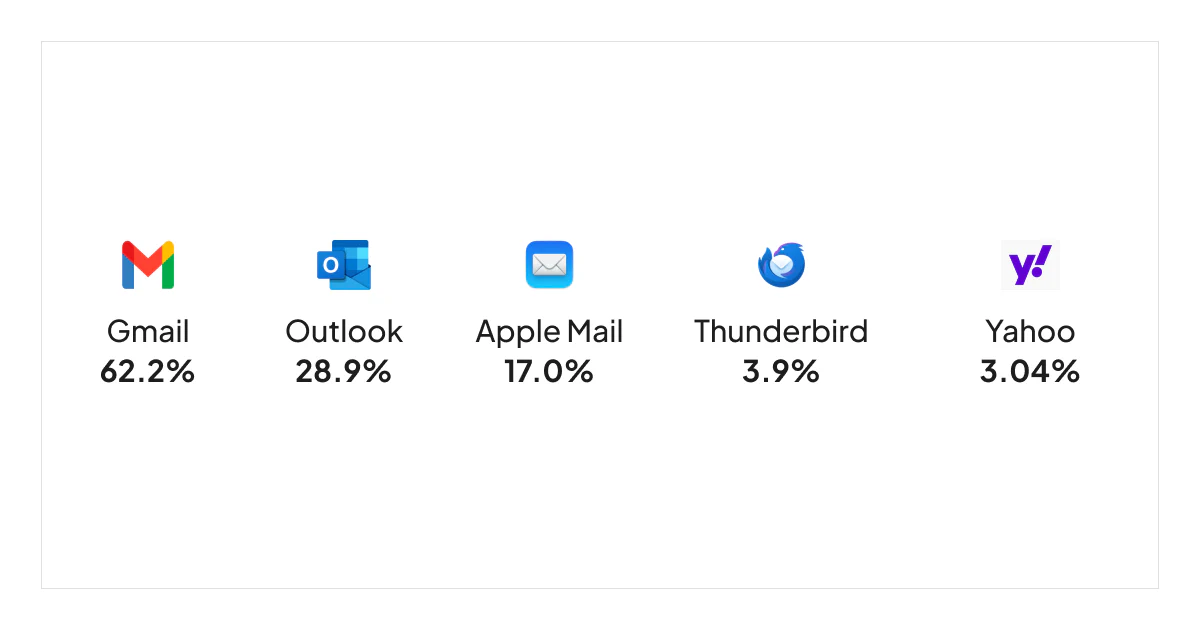
The process of adding a digital business card can vary depending on your email client, but we'll cover three most popular email platforms:
Open Gmail and click on the Settings icon in the top-right corner.
Scroll down to the Signature section to create or edit your email signature.
Click the image icon in the signature editor to insert your digital business card image or the link to the VCF file you created.
💡ProTip:
When you use digital solutions like Tapni, you can also add an image of your digital profile’s QR code.
Adjust the image size and alignment if necessary and click Save Changes at the bottom of the settings page to save your new email signature.
💡ProTip:
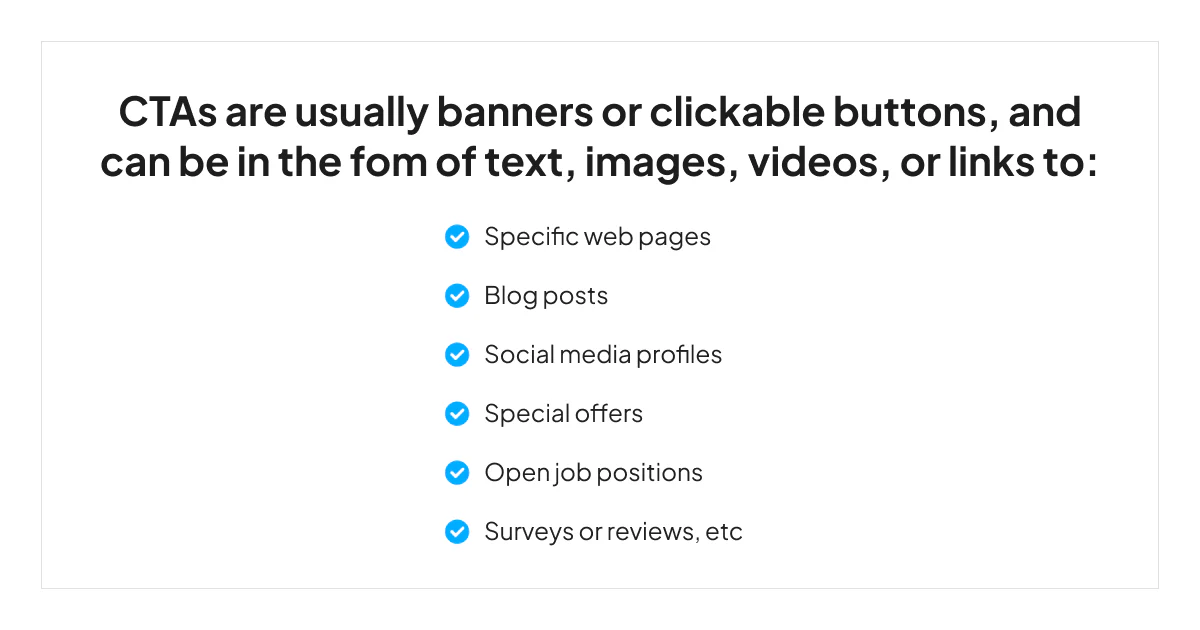
Don’t forget to include a CTA in your email signature so your contacts know what you expect them to do.
Open Outlook click on the Settings icon in the top-right corner.
In the Settings pane, go to Mail > Compose and reply.
Scroll down to the Email signature section to create or edit your email signature.
Click the image icon in the signature editor to insert your digital business card image and modify the image size and alignment as needed.
Step 5
Click Save to save your email signature.
Step 1
Open Apple Mail and go to Mail > Preferences.
Click on the Signatures tab in the Preferences window to create or edit a signature.
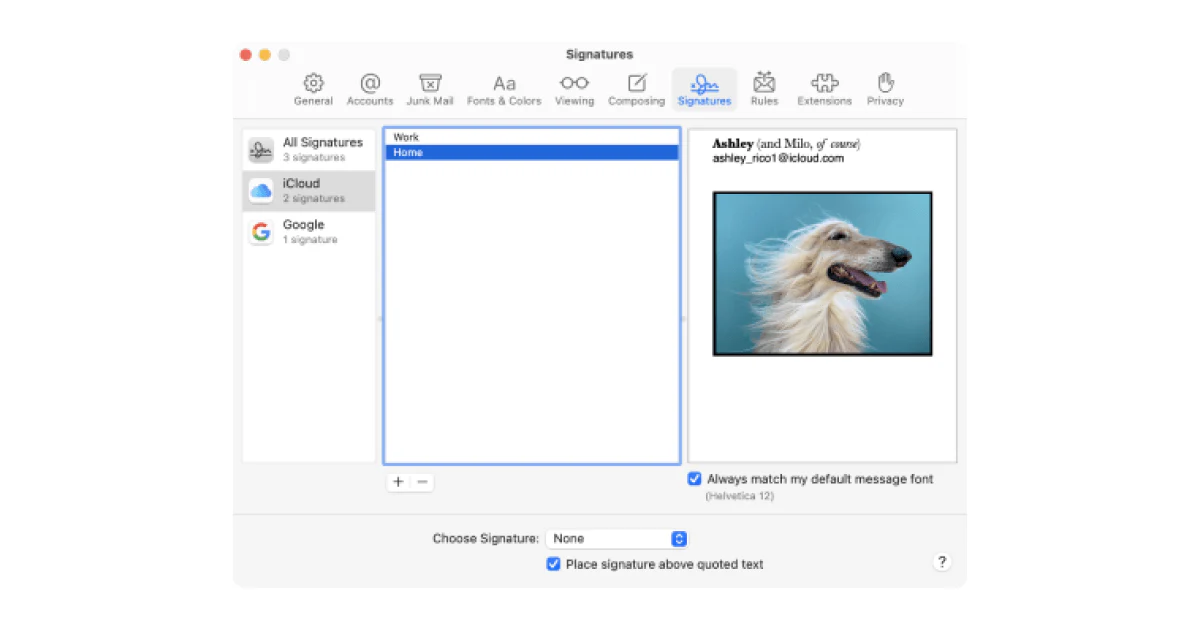
You can edit and format your text, turn it into links and drag and drop an image into the preview area.
To insert a digital business card, you need to click the image icon in the signature editor and upload the digital business card image.
Adjust the image size and alignment as desired ,and save your new email signature.
💡Tip:
Regardless of which email client you use, test your email signature to ensure it appears correctly.
For example, send a test email to yourself or a colleague to verify that the digital business card is displayed as expected and that all the information is accurate.
Adding a digital business card to your email signature is a small yet impactful step that can greatly improve your professional communication.
Furthermore, they create a convenient and accessible way for your contacts to access your information.
And with the right digital solution to back you up when creating them, you're also presenting yourself as a detail-oriented and tech-savvy professional.
Tapni is an all-in-one digital solution that boosts networking with its robust features while at the same time providing fully customizable digital business cards and products.
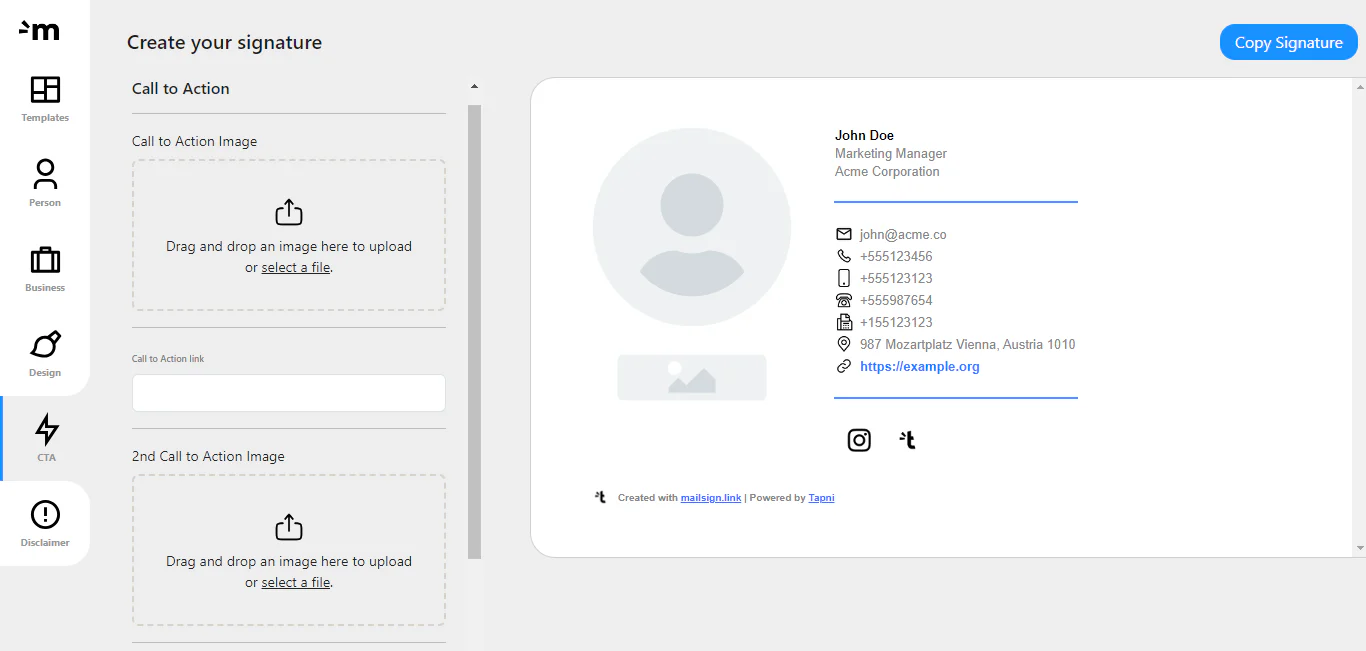
Tapni’s latest star is MailSign - a free email signature generator that offers fully customizable templates you can tweak to your needs.
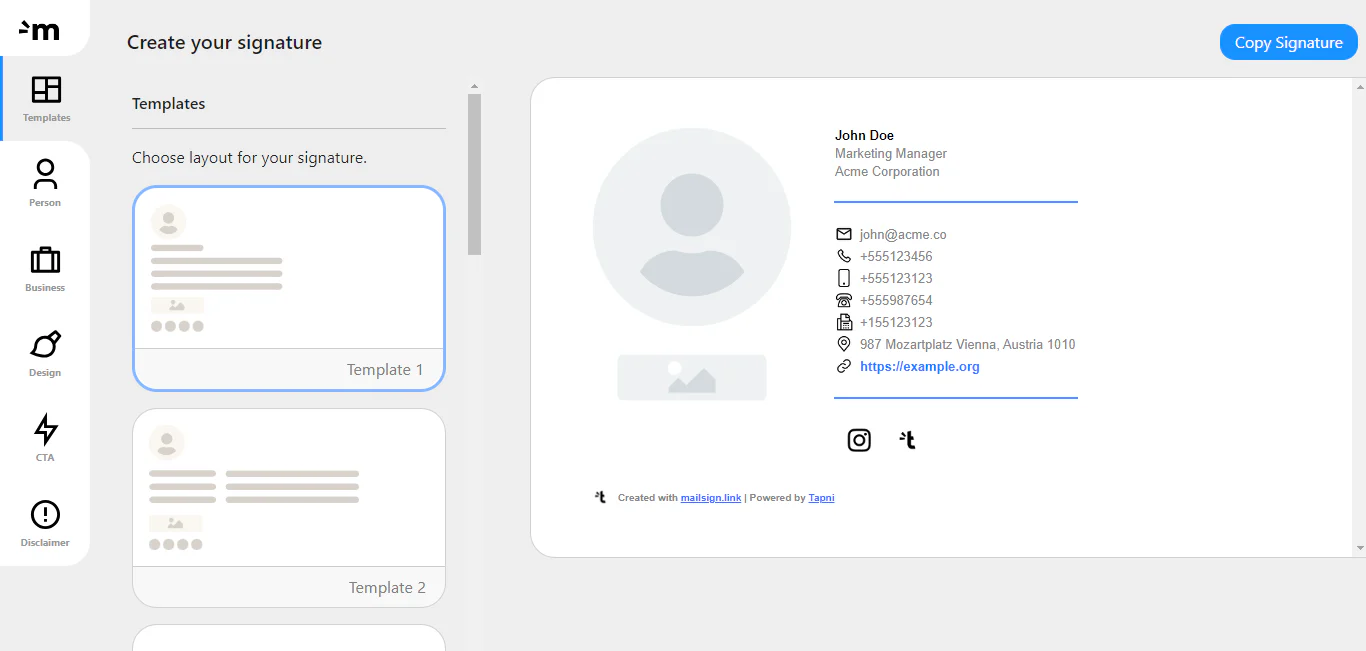
You can choose from various horizontal and vertical templates and add all the relevant contact info, photos, logos, links, CTAs, and disclaimers.
Another perk is that you can create personal and business email signatures, as well as add 2 CTA images and links.
Furthermore, Tapni enables you to share your digital business card in multiple ways: via phone, QR codes, emails, tapping, URLs, etc.
In addition, Tapni also assists you in:
✨ Scheduling follow-up messages
✨ Getting valuable analytics and metrics after networking events
✨ Managing your team and doing easy and more organized onboarding
✨ Integrating your CRM,
✨ and so much more.
Want to give Tapni a try?
Download the Tapni app today and launch your email communication to new heights.
First, you need to open the Wallet app on the iPhone. Then, tap the “+” option in the top-right corner of the screen, click “Add Card” and select “Scan Code.”
After scanning the code, your digital business card will be inserted into your Wallet.
For a more detailed view, jump to our blog How to Insert a Digital Business Card to Your Apple Wallet?
Depending on the digital solutions you use, you can share your card in multiple ways, via email, URLs, tapping, scanning, etc.
With Tapni, you can share your card in 8 different ways.
The QR code on your digital business card has multiple functions. You can use it as a part of your email signature. In addition, your contacts could scan it and get info about you.
You can also use it as a virtual background during networking events and as a gamification tool.
How to Create a Digital Business Card on iPhone?
8 Best Digital Business Card Apps
NameDrop by Apple: Simplifying Contact Sharing and its Impact on Digital Business Card Startups