Browse our comprehensive product guides and documentation

You can save your digital business card directly to your phone’s wallet for faster sharing and easy access anytime - even without opening the app. Once added, your card can be shared instantly in person, at events, or during meetings.
This guide will show you how to add your card to Apple Wallet (iPhone) and Google Wallet (Android) using the app.
Make sure that:
You are logged into the Tapni app
Your profile/card is fully created
You have an active internet connection
Your phone supports Apple Wallet or Google Wallet
Open the Tapni app and go to the home screen.
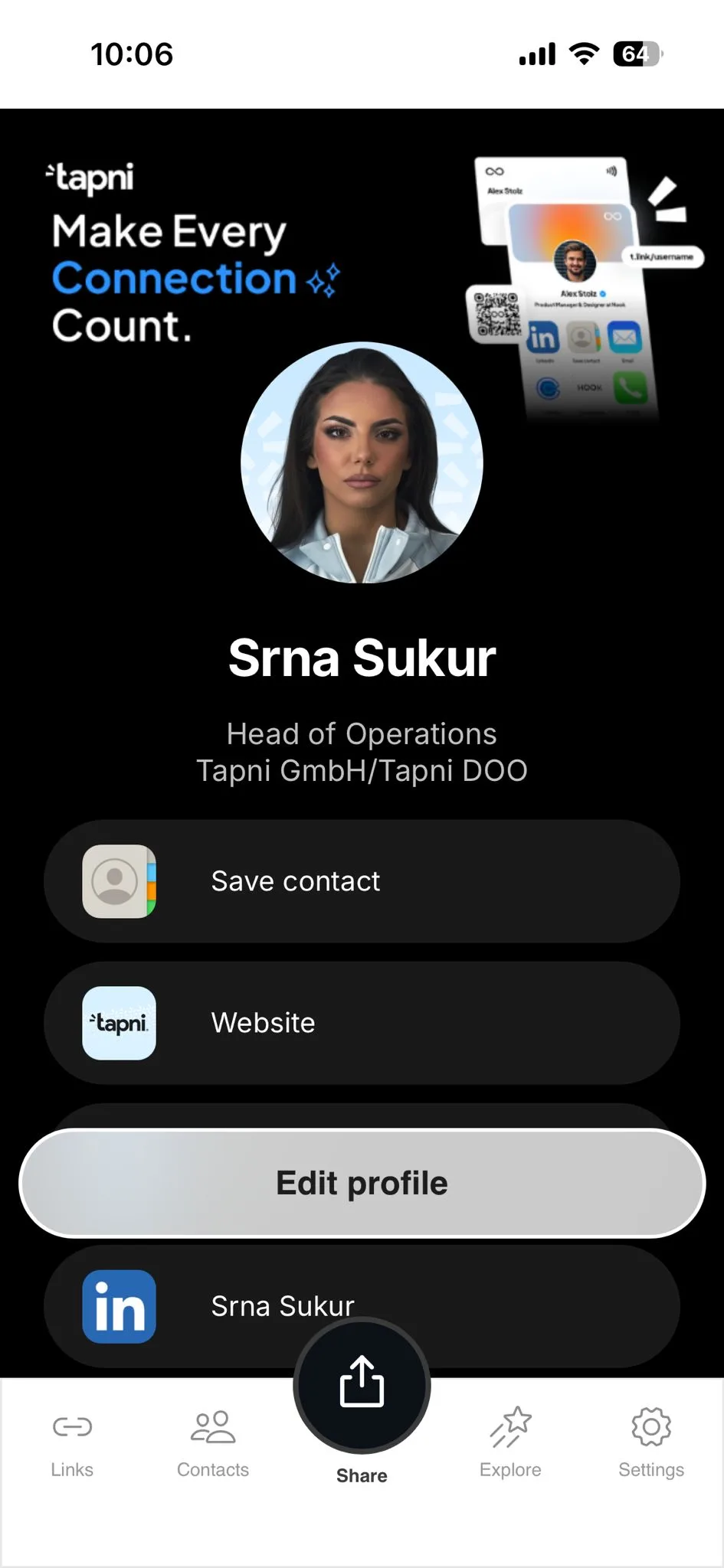
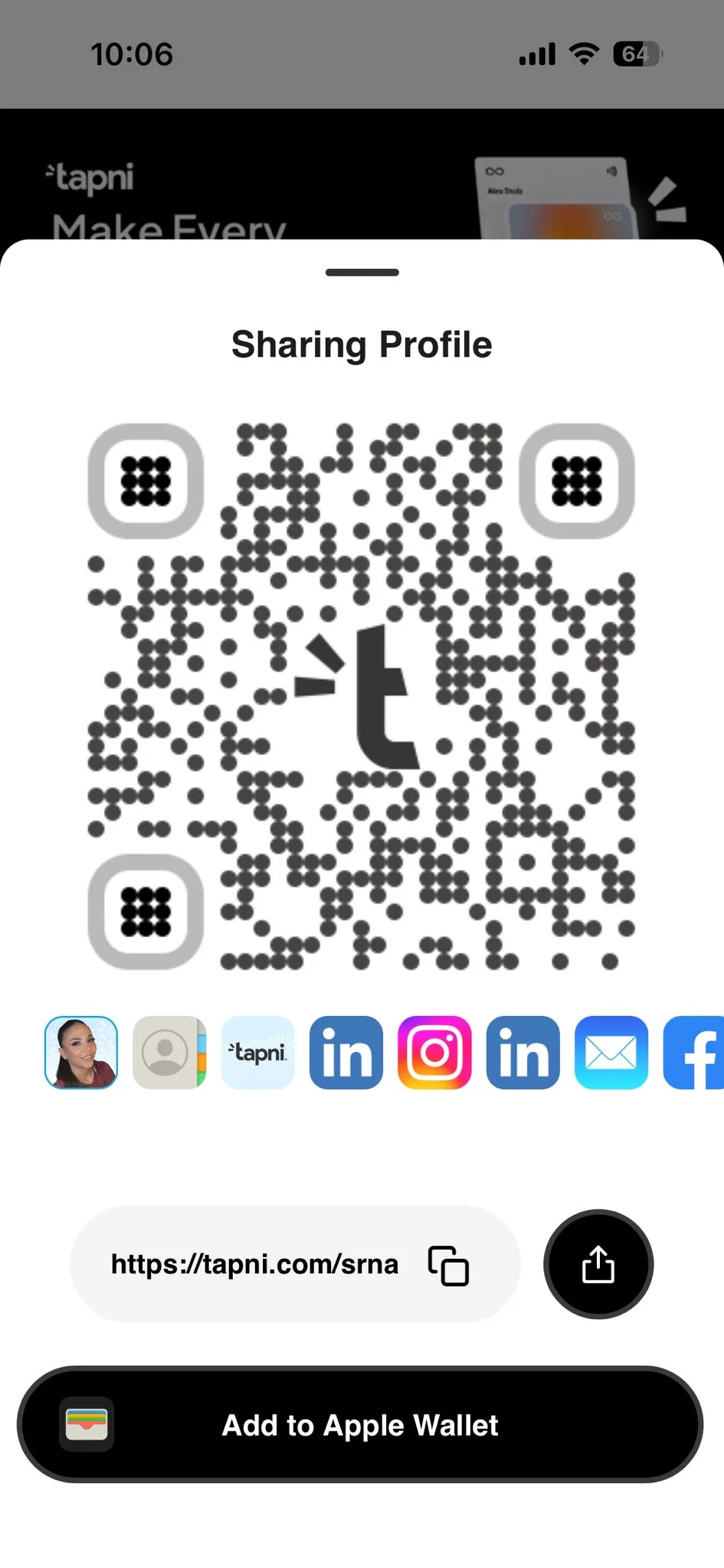
On the home screen, tap the “Share” button. Then tap the “Add to Apple Wallet” or “Add to Google Wallet” button at the bottom, depending on which device you’re using.
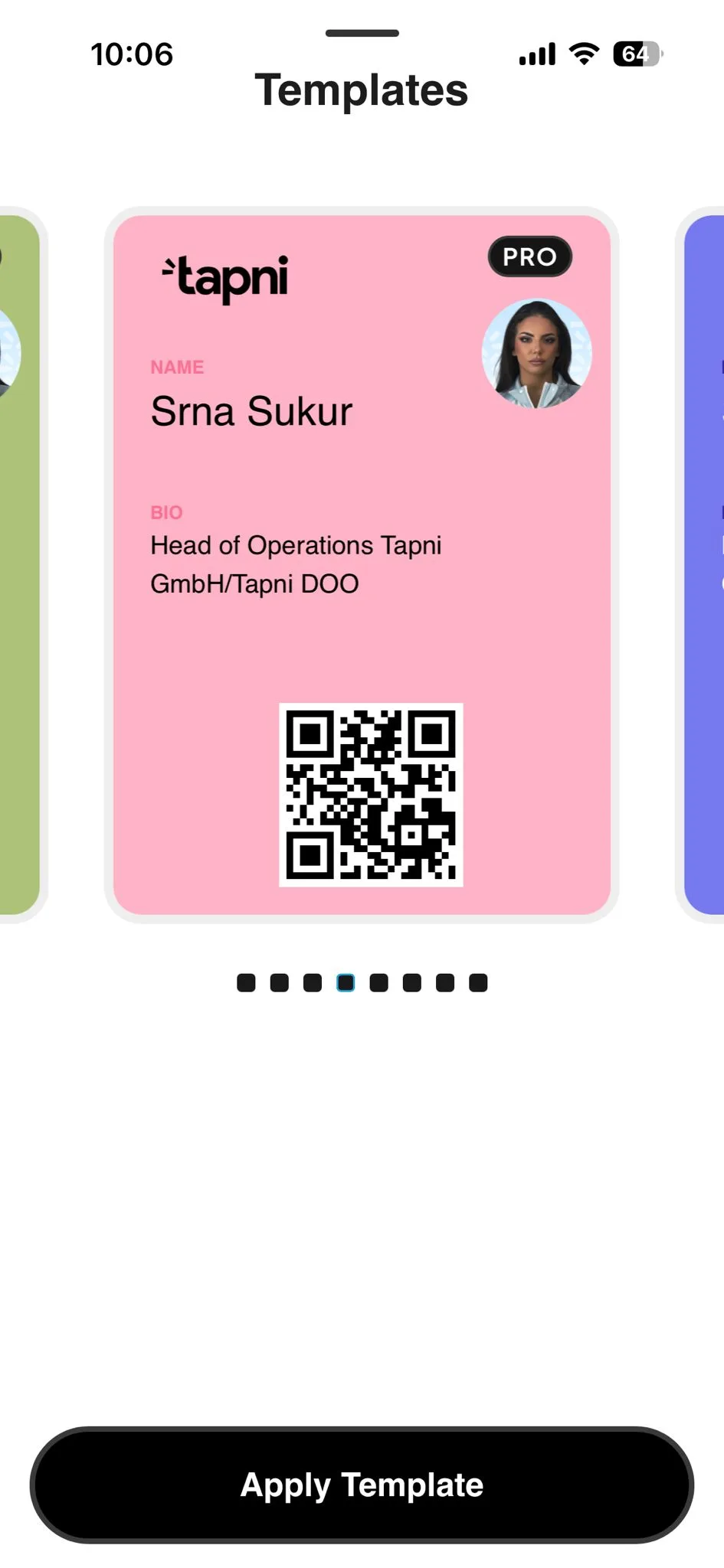
A list of your created templates will open. Select the one you want by tapping on it - a highlighted border will appear to confirm your selection - then tap “Apply Template.”
A preview of the template will open. Tap the “Add” button in the top-right corner, to approve it.
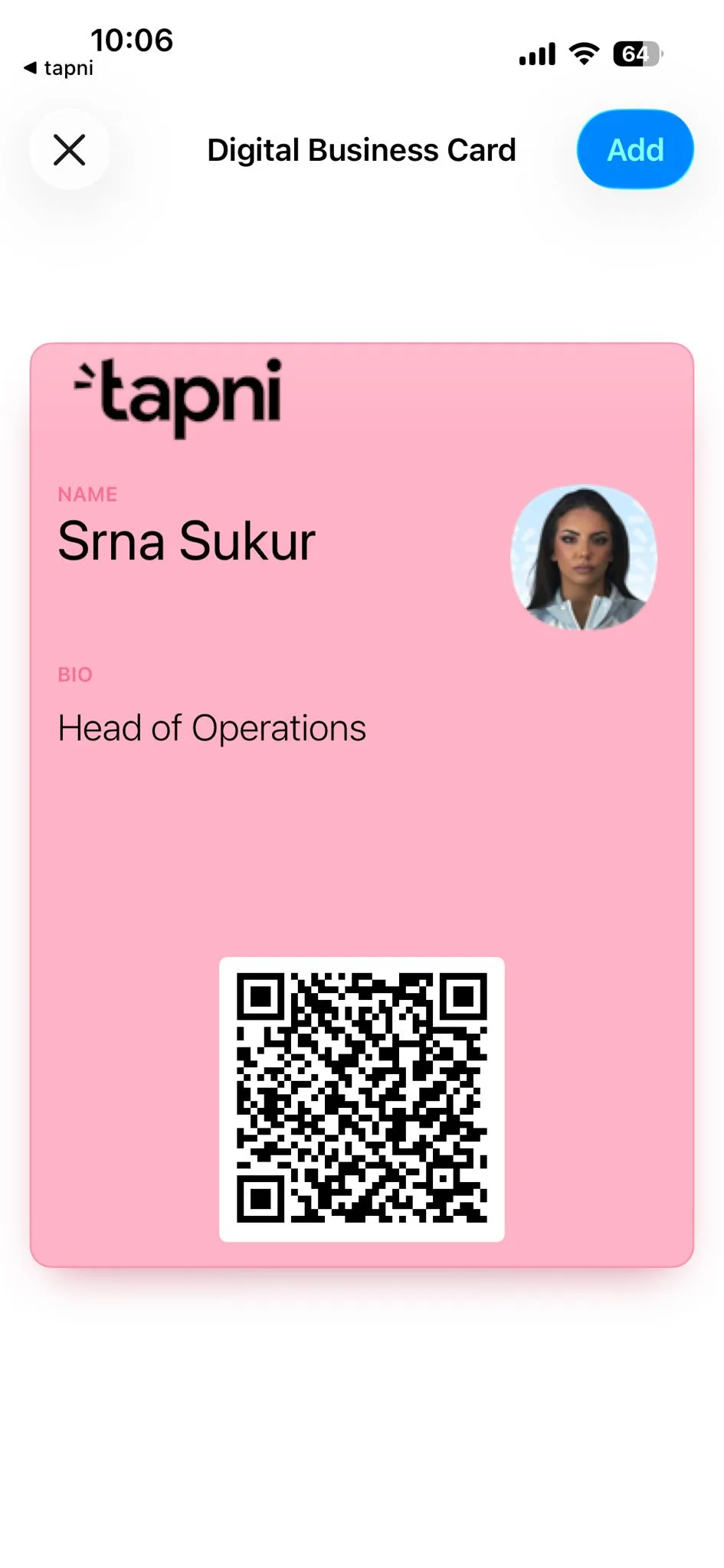
After successfully adding the card, it will appear inside your phone wallet and can be accessed at any time without opening the app.
Your wallet card updates automatically whenever you update your profile inside the app - you don’t need to re-add it.
Tap, share, and start networking.🚀